
Step 1: Create Account Items in Chart of Accounts
Step 2: Build Driver Pay Rules in Driver Pay Manager
Once your items exist, go to Accounting > Driver Pay Manager > Driver Pay Items tab > Create New Driver Pay Item.
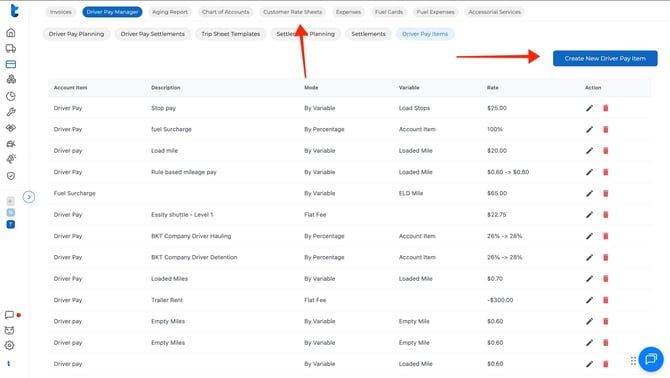
Fill in:
- Account Item — select from the items you created in Step 1
- Description — your custom label for this rule (e.g., Loaded Miles SH)
- Mode — how the pay is calculated:
| Mode | How it works |
|---|---|
| Flat Fee | Fixed amount every time |
| Variable | Based on miles, load amount, etc. |
| Percentage | A % of another value (e.g., 50% of hauling fee) |
| By Fuel | Based on fuel surcharge |
- Variable (if using Variable mode) — choose what drives the calculation:
- Loaded Miles
- Empty Miles
- Load Amount
- Shipper / Receiver stops
- Etc.
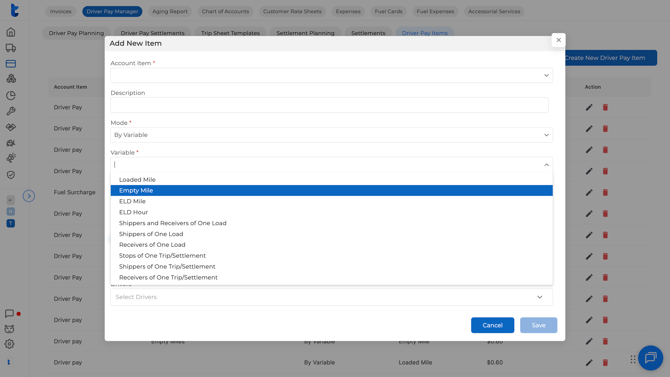
- Model — how the pay is applied:
- Trip Pay — calculates per trip during the settlement period
- Settlement Adjustment — applies once per settlement, doesn't affect gross profit per trip (common for deductions or one-time adjustments)
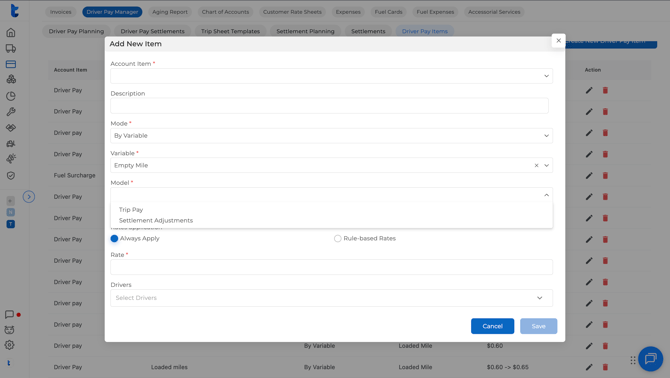
- Rate application:
- Always Apply — same rate every time, no conditions
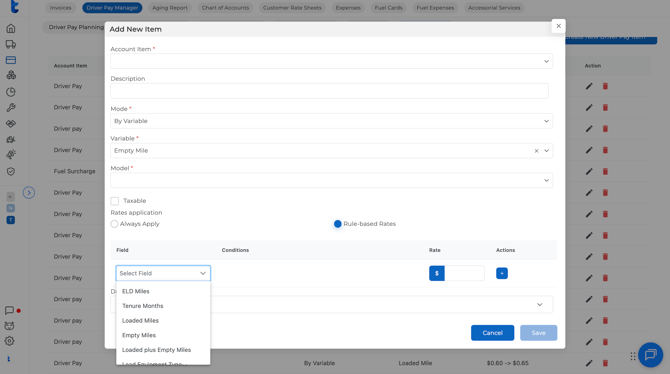
- Rule-Based Rates — rate changes based on conditions, for example:
- Tenure (months of experience)
- Loaded or empty miles thresholds
- Equipment type (e.g., pay more for flatbed or heavy haul vs. dry van)
- Etc.
Step 3: Assign Rules to Drivers
There are two ways to do this:
Option A — From Driver Pay Manager
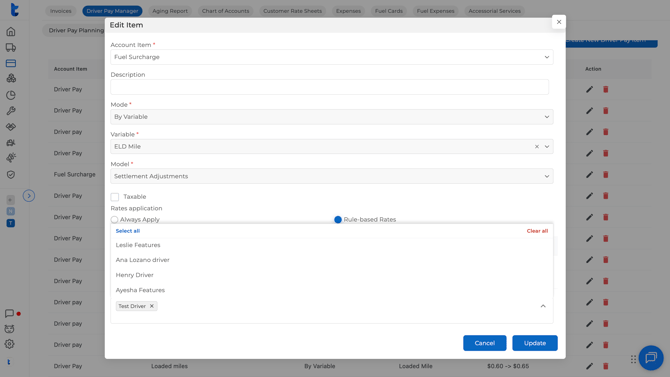
After configuring the rule, scroll down to the Drivers field, select all the drivers this rule applies to, and click Save. One rule can apply to many drivers at once.
Option B — From the Driver Profile
Go to Assets > Drivers > select a driver > Accounting tab.
First, make sure Driver Pay V2 is enabled under Compensation.
Then go to the Driver Pay tab, where you can either:
- Create a new driver pay item directly for that driver, or
- Apply an existing rule you already built in Driver Pay Manager.
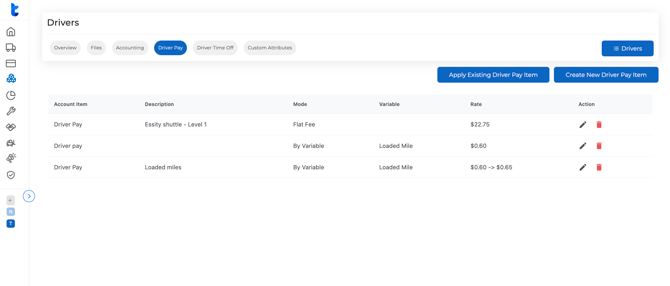
Use this option when a driver has unique pay conditions that differ from your standard rules.
What's Next?
- Need to set up your account items first? → [How to Add Items to Your Chart of Accounts — link here]
- Want to automate customer invoices and rate sheets? → [Customer Rate Sheets tutorial — link here]
- Check our new update to pay by equipment type!! → Click here