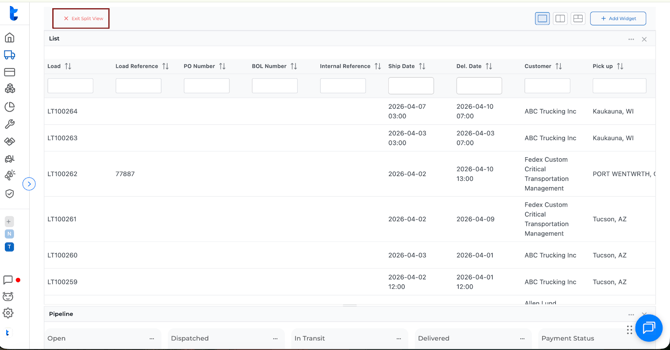
How to Open Split View
- Go to the Dispatch module.
- In the top-right corner, click the Split View button.
- Once selected, the screen will open in split view mode.
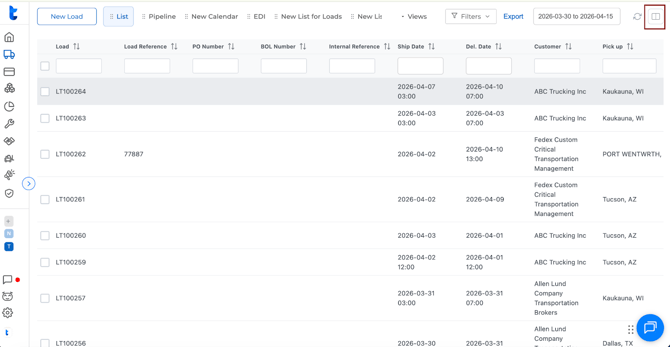
Choosing Your Layout
After entering Split View, you can choose how you want your workspace arranged.
Truckpedia allows you to:
- Open two views side by side
- Add more views to the screen as needed
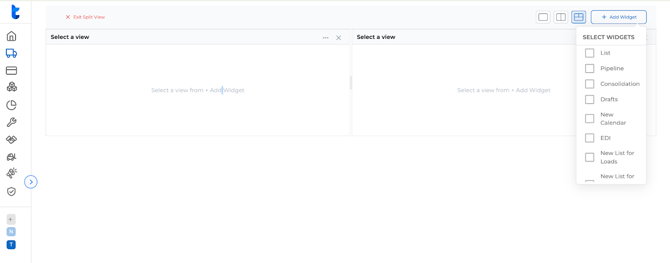
How to Add More Views
- Inside Split View, click Add Widget in the top-right corner.
- A panel will appear showing available view options.
- Select the view(s) you want to add.
- The selected view will appear in your split layout.
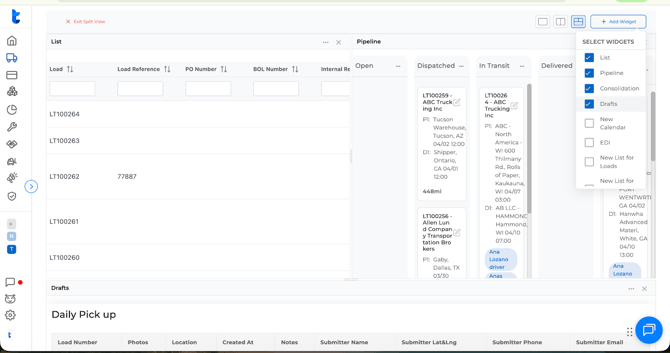
You can add multiple views to your workspace, allowing you to build a layout that fits your dispatching workflow.
How to Resize Views
You can manually adjust the width of each view in Split View.
- Hover over the divider between two views.
- Click and drag the divider to resize the panels.
- Release when the spacing looks right for your workflow.
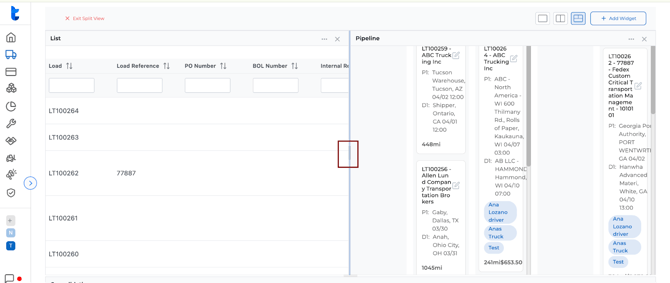
This helps you give more space to the view you need most.
How to Exit Split View
To leave Split View, click Exit Split View in the upper-left area of the screen.
This will return you to the standard single-view Dispatch screen.