
The Consolidation feature allows you to manage loads that require a trailer drop at a yard and a secondary driver to complete the final delivery.
This is commonly used for LTL, cross-border, and multi-step operations where different drivers handle different parts of the same load.
Video on How to Use the Consolidation Feature in Truckpedia (English)
Video on How to Use the Consolidation Feature in Truckpedia (Spanish)
What Consolidation Lets You Do
- Track all trailers currently dropped at yards.
- See all commodities remaining in each trailer.
- Assign a second driver to pick up a partially or fully filled trailer.
- Automate the second driver’s delivery instructions based on all loads dropped into that trailer.
1. Build the Load
- Go to Dispatch
- Create a new load or open an existing one.
- In Step 4 – Assign Driver & Equipment, you will see the trip sequence.
- By default, the load only has:
- Shipper
- Receiver
These come from the customer’s order.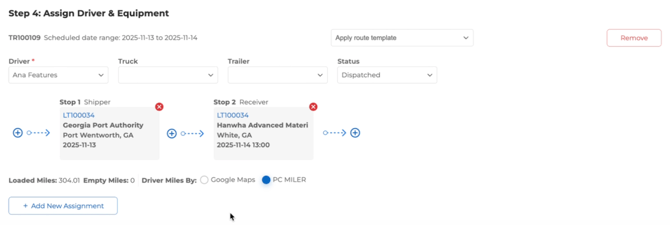
- Shipper
If your driver needs to drop the freight at a yard before the receiver, you must manually change the routing.
2. Add a Yard as a Stop
- In Step 4, remove the receiver by clicking on the small red cross.
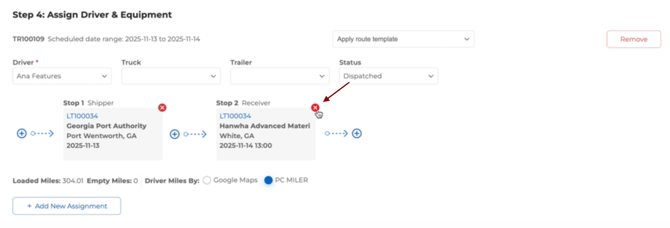
- Click Add Stop.
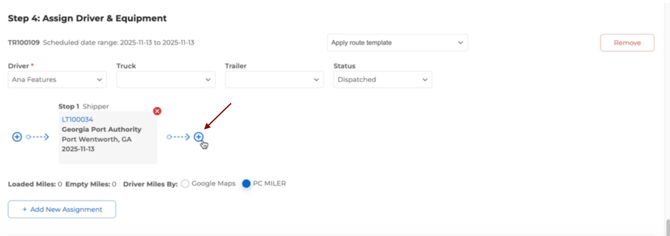
- Select a Saved Address → choose your internal yard or warehouse.
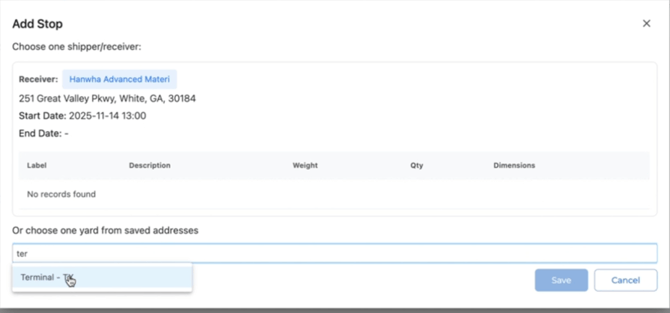
- Assign the first driver to move the load from shipper → yard.
- Submit the load.
Note: Saved addresses must be set up beforehand. If you don’t know how, refer to the Saved Addresses article.
3. Dispatch to Driver #1
- Dispatch the load.
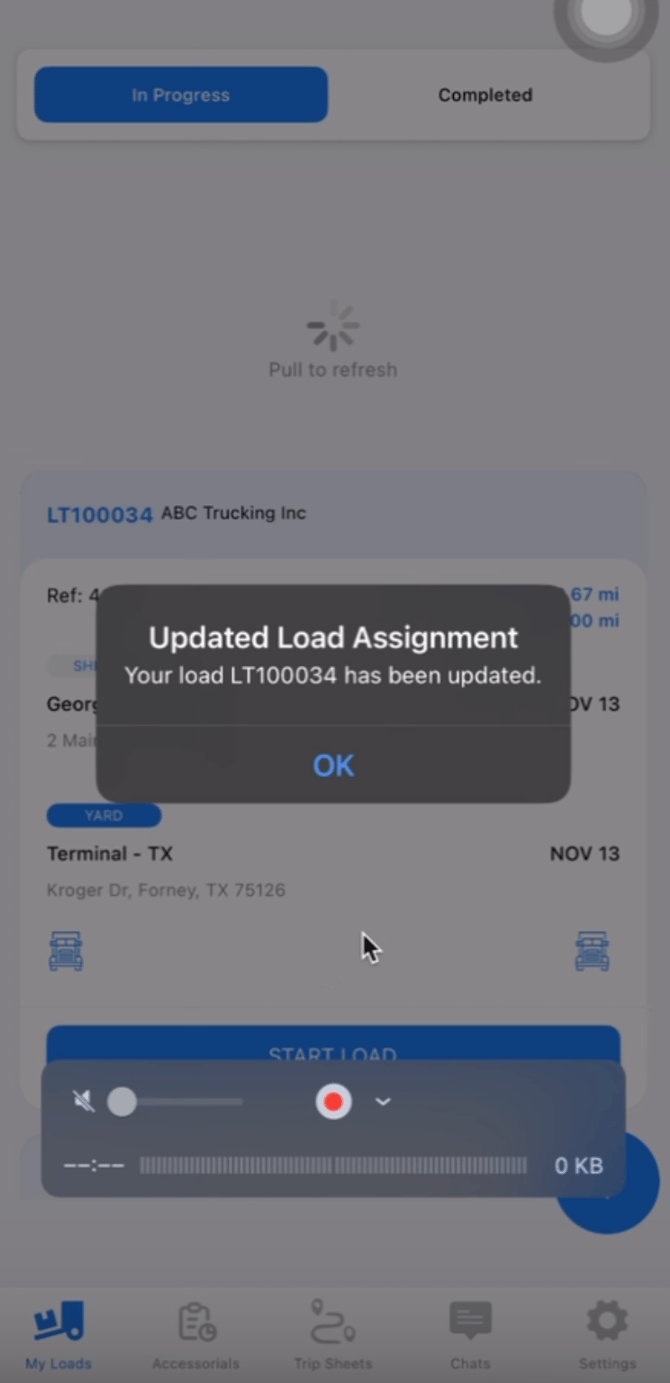
- The driver will receive:
- Shipper details
- Yard as the second stop
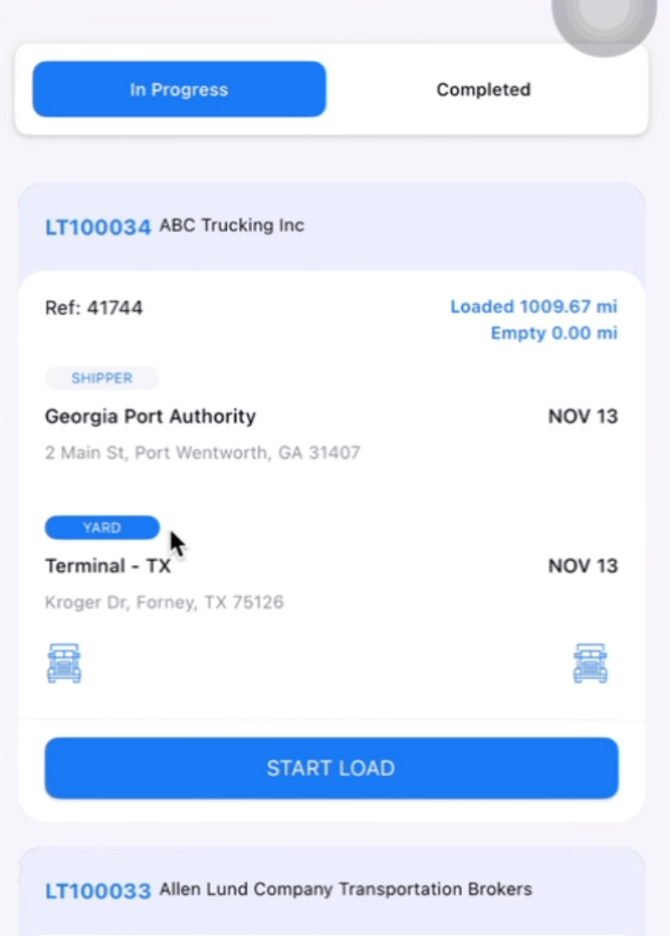
- Shipper details
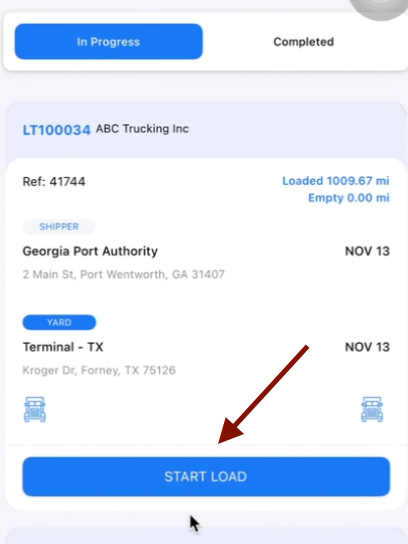
- Driver starts the load and performs:
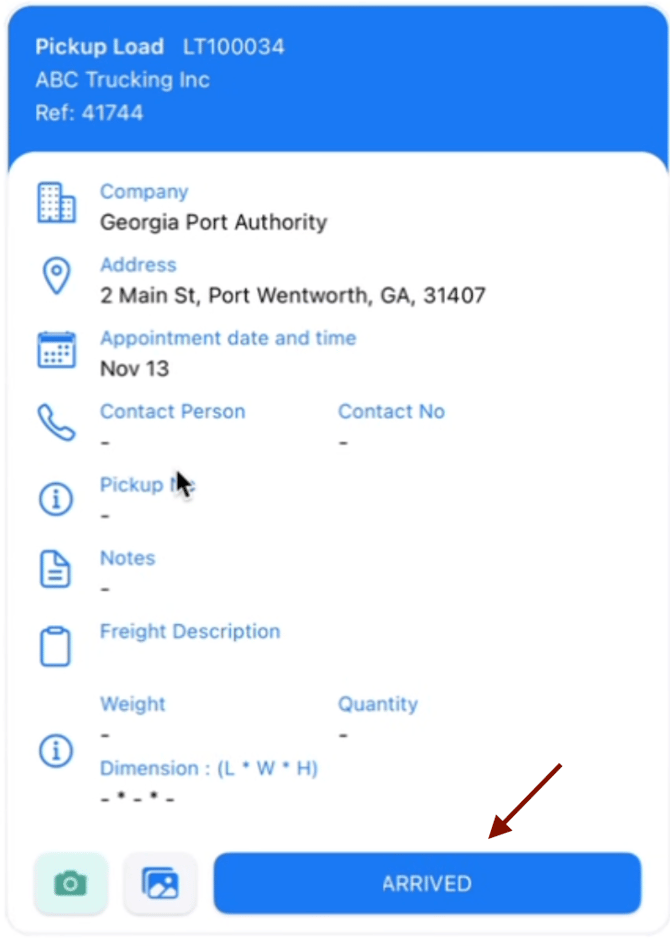
- Arrived at Shipper
- Loaded
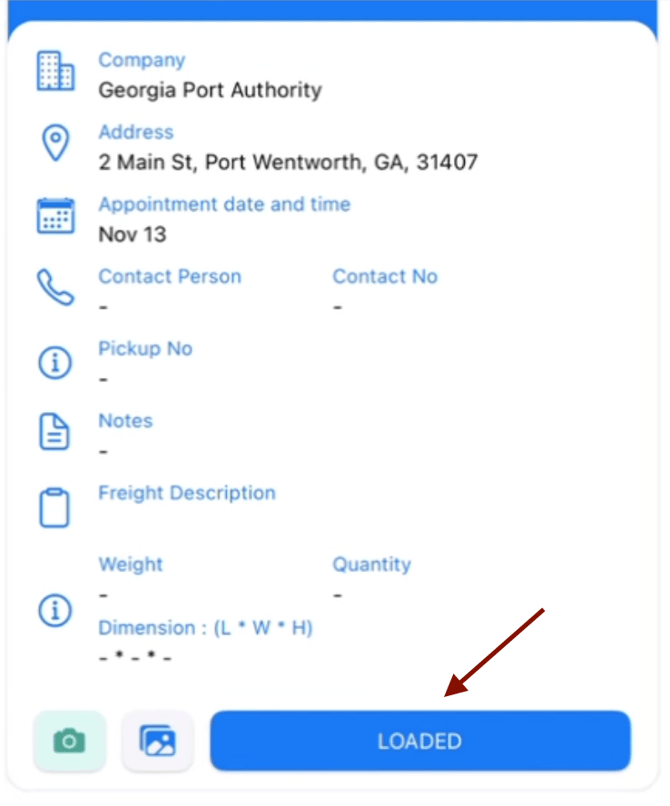
- Arrives at the Yard
- Arrived at Shipper
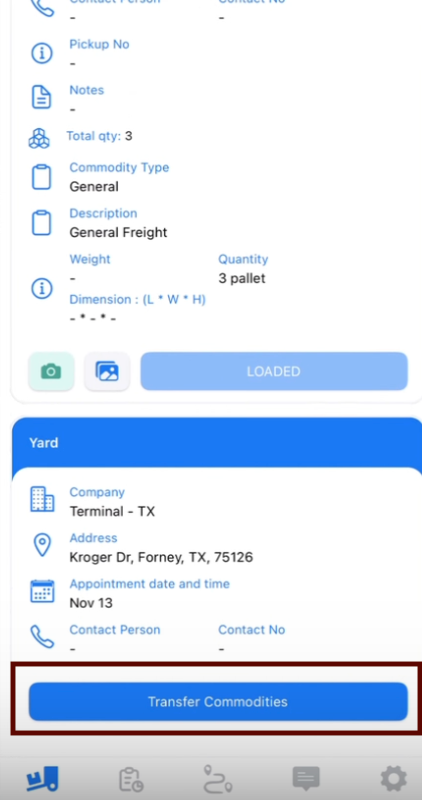
At the yard, the driver will see Transfer Commodity instead of Arrived/Unloaded.
4. Add Commodity Details (Recommended)
If the driver is carrying multiple commodities or multiple deliveries:
- Open the load.
- Add Commodity details (e.g., pallets, pieces).
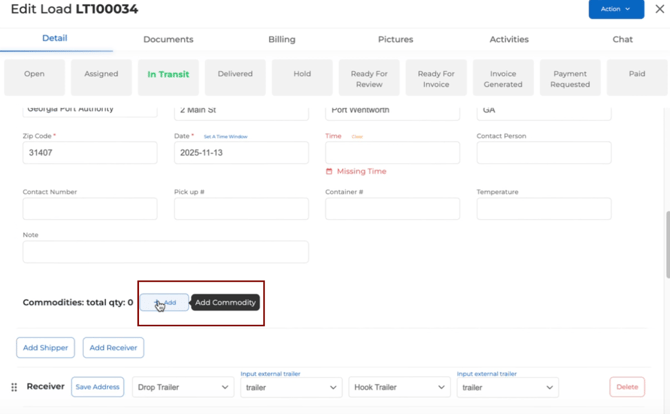
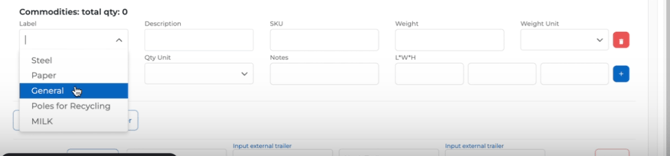
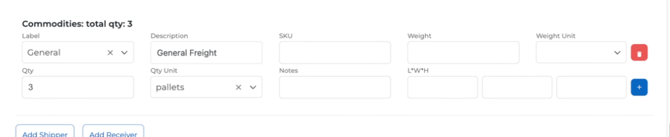
- This ensures the driver knows exactly what is being transferred.
- Scrolling down to receiver you will see the commodity added automatically by the system
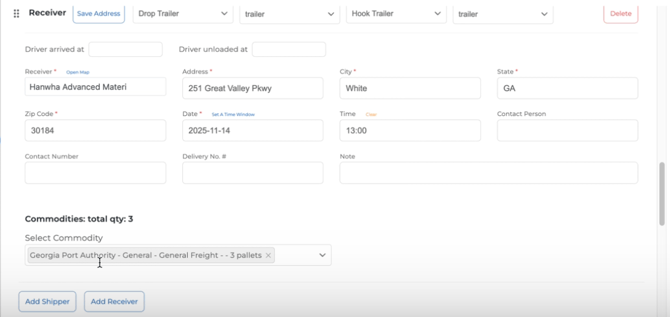
- Submit updates so they appear in the driver’s app.
5. Driver Transfers Commodity at the Yard
In the mobile app:
- Driver taps Transfer Commodity.
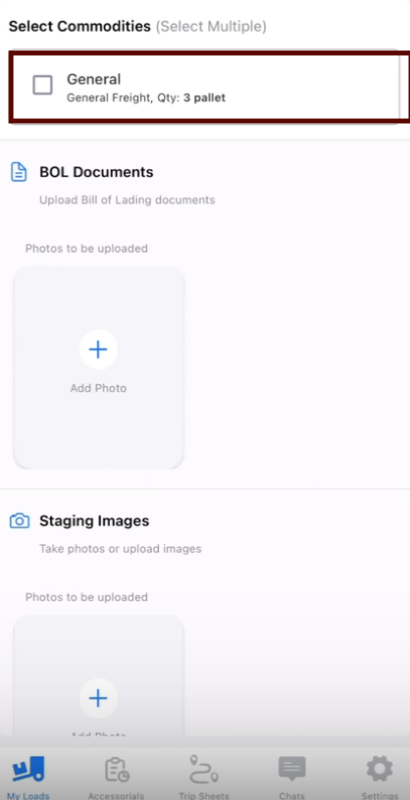
- Selects the commodity being dropped.
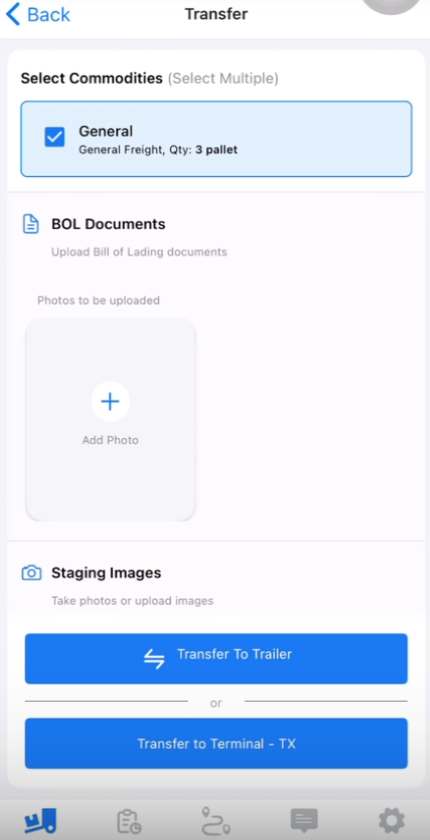
- Selects the Trailer (or Yard) to transfer to.
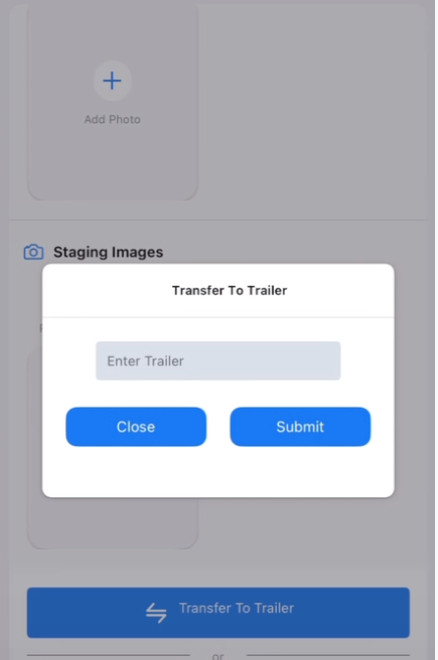
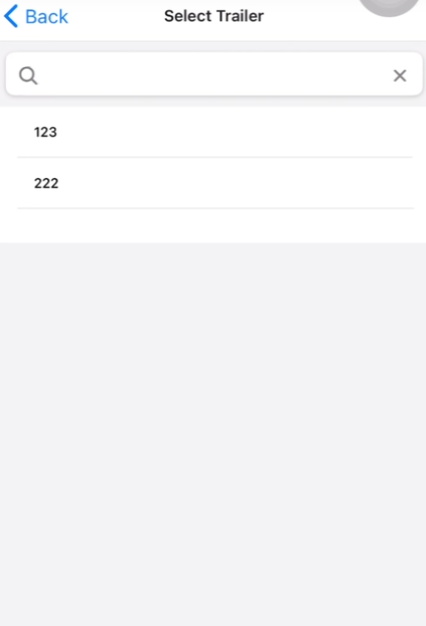
- Inputs trailer fill percentage.
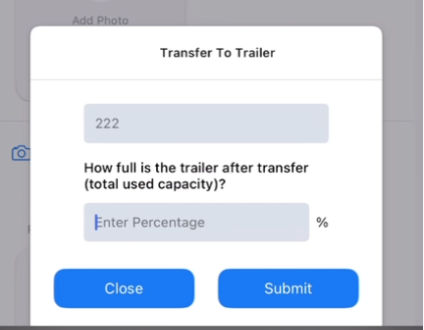
- Submits.
This action places the commodity into that trailer in the Consolidation module.
6. View Trailers in Consolidation
On the dispatcher side:
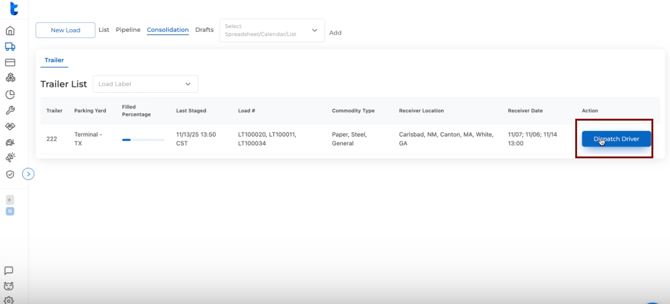
- Go to Consolidation.
- You will now see:
- The trailer dropped at the yard
- All commodities inside (from one or multiple loads)
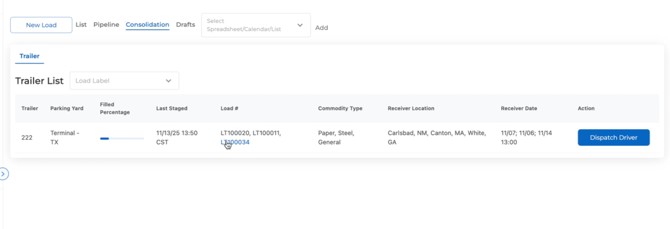
- Drivers who have dropped freight into this trailer
- The trailer dropped at the yard
This is where you monitor when a trailer is ready to be moved again.
7. Assign Driver #2 to Pick Up the Trailer
Once the trailer has enough freight:
- In Consolidation, open the trailer.
- Click Dispatch Driver.
- Select the second driver.
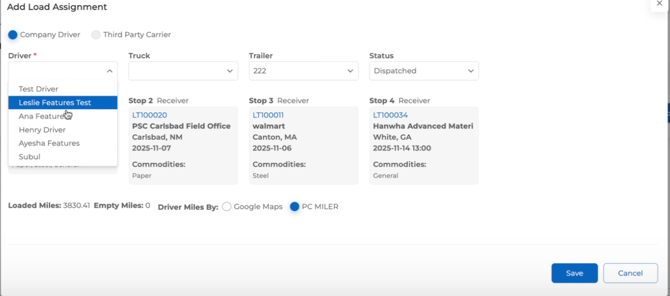
- The system automatically creates the required sequence:
- Pick up trailer from yard
- Deliver all commodities to their original receivers
- Pick up trailer from yard
- Select dates and dispatch.
The driver will receive one consolidated trip with all the receivers for all loads previously dropped into that trailer.
8. Driver #2 Completes Deliveries
Driver #2 will see:
- Pick up at yard
- All receiver stops
- Load/unload workflow for each stop
Once the trip is completed, the consolidation cycle is done.
Summary
The Consolidation feature allows you to:
- Drop freight at a yard
- Combine commodities from multiple loads into one trailer
- Dispatch a second driver with automated delivery instructions
- Track all trailer locations and remaining load content
It streamlines multi-driver and cross-border workflows and ensures all deliveries from a shared trailer are properly assigned and completed.
For any questions, contact support at help@truckpedia.io.