
📽️Video on How to Use New List View for Load Invoices (Invoice v2)📽️
1. Open the correct invoicing module
- Go to Accounting.
- You will see two options: Load Invoices and Load Invoices 2.
- Select Load Invoices 2.
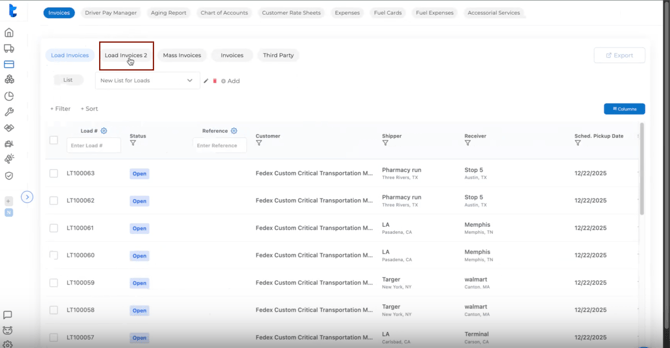
If you are not sure which invoicing version is enabled for your account, contact the support team and they will confirm or enable it for you.
2. Create a list
If no list exists yet:
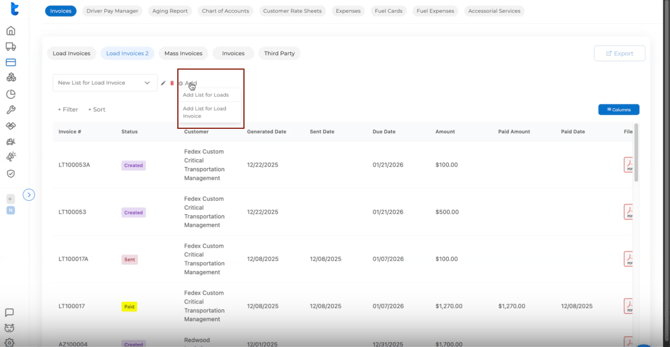
- Click Add.
- Choose one of the following options.
Add List for Loads
- Displays all loads in the system.
- Allows you to categorize loads and customize what data is visible.
- Best when working at the load level.
Add List for Invoice
- Displays invoices instead of loads.
- Focuses on invoice numbers rather than load numbers.
- Best for tracking invoices and payments.
3. Customize columns and layout
- Click Columns in the top-right corner.
- Use the eyeball icon to show or hide fields.
- Reorder columns as needed.
- Click Save to apply the layout.

4. Why the same load may appear multiple times
In the Invoice list, the same load can appear more than once.
This happens when a load has multiple invoices.
Example:
- First invoice for hauling fee.
- Secondary invoice for detention or other charges.
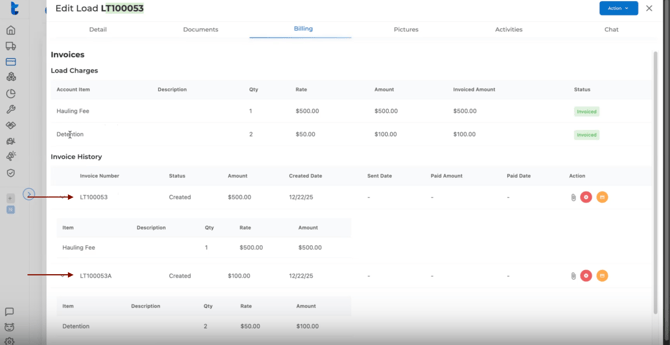
The Invoice list tracks invoices, not loads.
5. Invoice actions
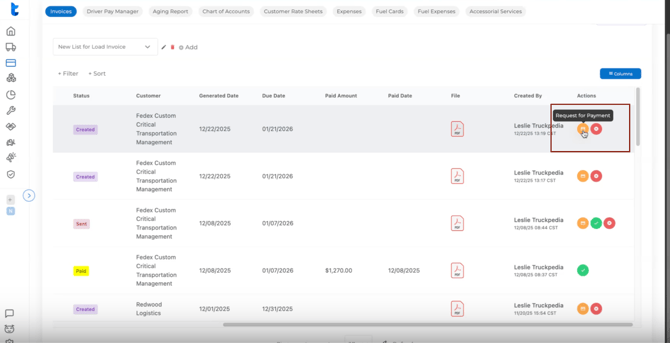
From the Invoice 2 list, you can perform the following actions.
Request for Payment
- Sends the selected invoice to the customer with a payment request.
Void Invoice
- Removes the invoice from the load.
- The invoice can be regenerated later if needed.
Mark as Paid
- Enter the payment amount.
- Enter the payment date.
- Confirm to mark the invoice as paid.

6. Correcting a paid invoice
If an invoice was marked as paid incorrectly, it can be reverted and then voided if necessary.
Summary
- Use List for Loads to manage loads.
- Use List for Invoice to track invoice numbers, payments, and multiple invoices per load.
For further questions, contact us at help@truckpedia.io.