
Step 1: Go to Accounting
In the left-side navigation menu, click Accounting. This opens the Invoices section by default.
Step 2: Open the Trip 3rd Party tab
In the top tab bar, scroll to the right and click Trip 3rd Party. The list will automatically filter to show only assignments dispatched to a third-party carrier.
Note: This default filter is applied automatically. You can remove or adjust it manually
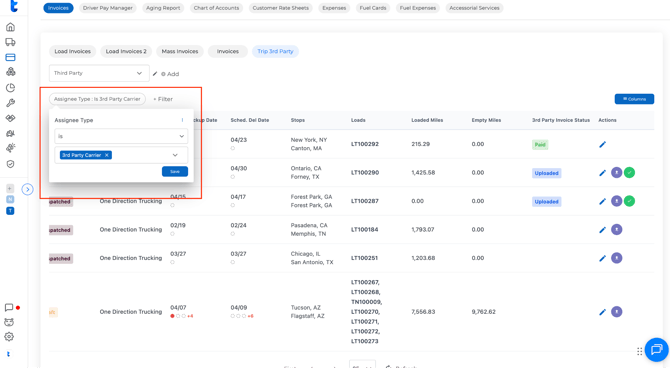
Step 3: Filter your list (optional)
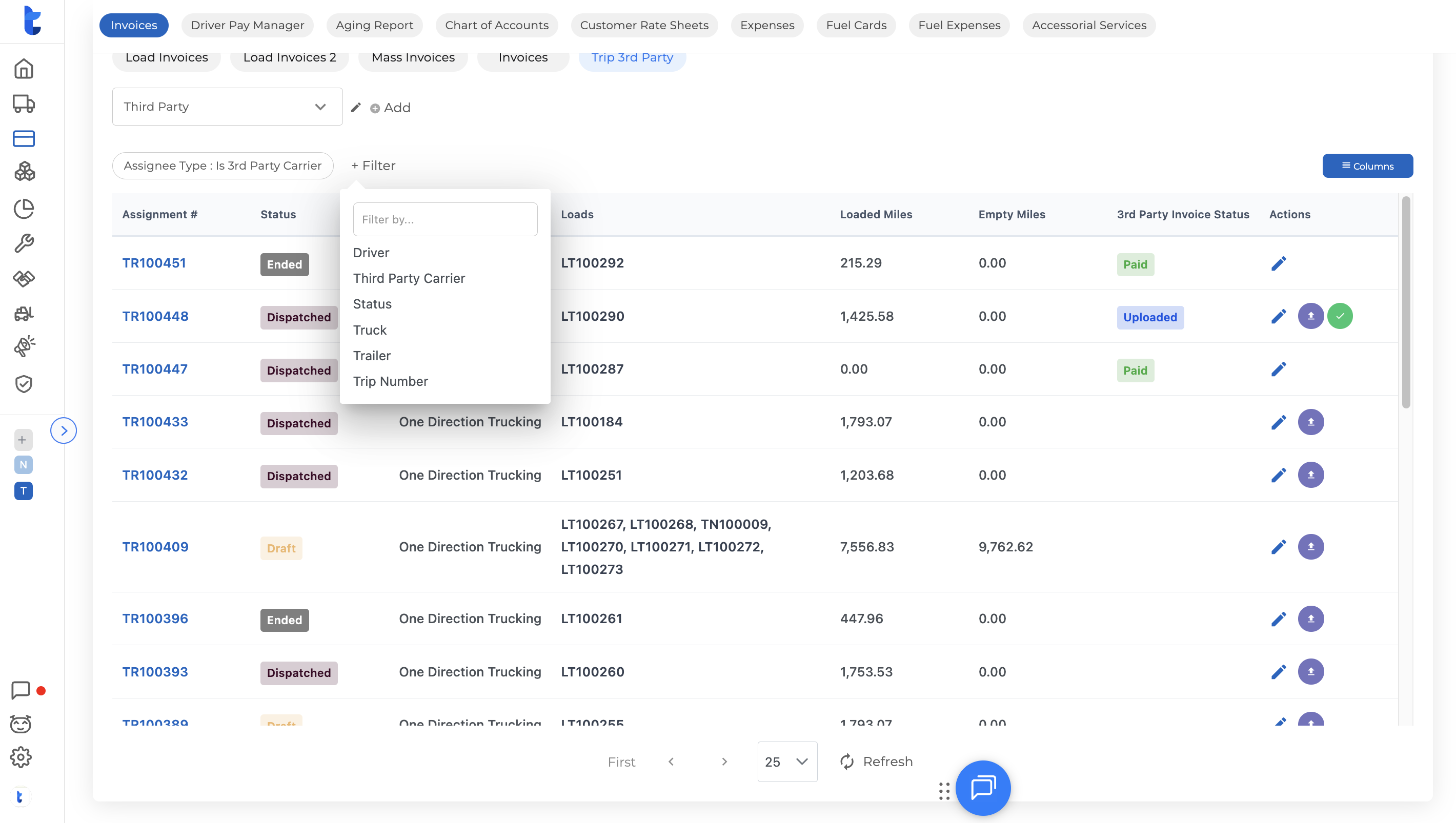
Use the + Filter button in the upper-left area to narrow down the list. Available filters include:
- Driver
- Third Party Carrier
- Status
- Truck
- Trailer
- Trip Number
Tip: Filters are persistent — once applied, they stay in place when you navigate away and come back. You can save different filtered views for different reporting needs.
Step 4: Customize your columns
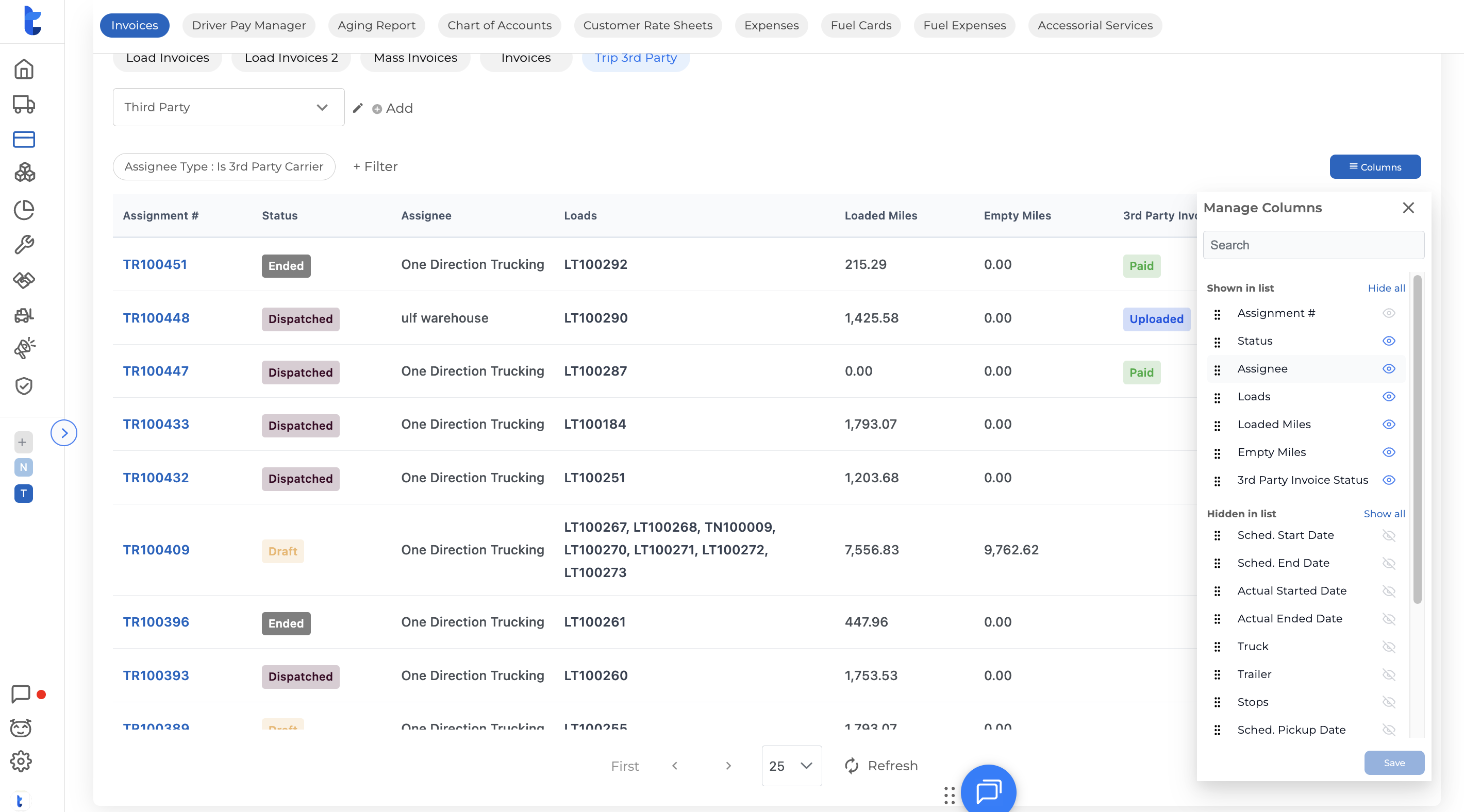
Click the Columns button in the upper-right corner to open the column manager. Toggle the eye icon next to any column to show or hide it. You can also drag and drop columns to reorder them to your preference.
Step 5: Upload a carrier invoice
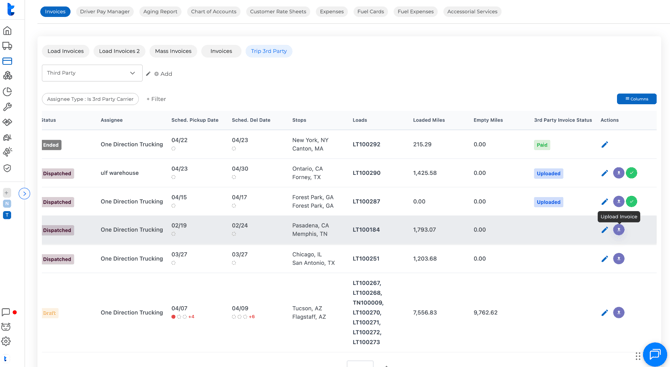
In the Actions column on the far right, click the upload button (purple arrow icon) for the relevant assignment. This opens a prompt to attach the invoice you received from your carrier.
You can also do this going into the Trip / Load directly --- Documents tab
Step 6: Mark the invoice as paid
Once an invoice has been uploaded, click the green checkmark button in the Actions column to mark it as paid. The system will automatically update the invoice status.
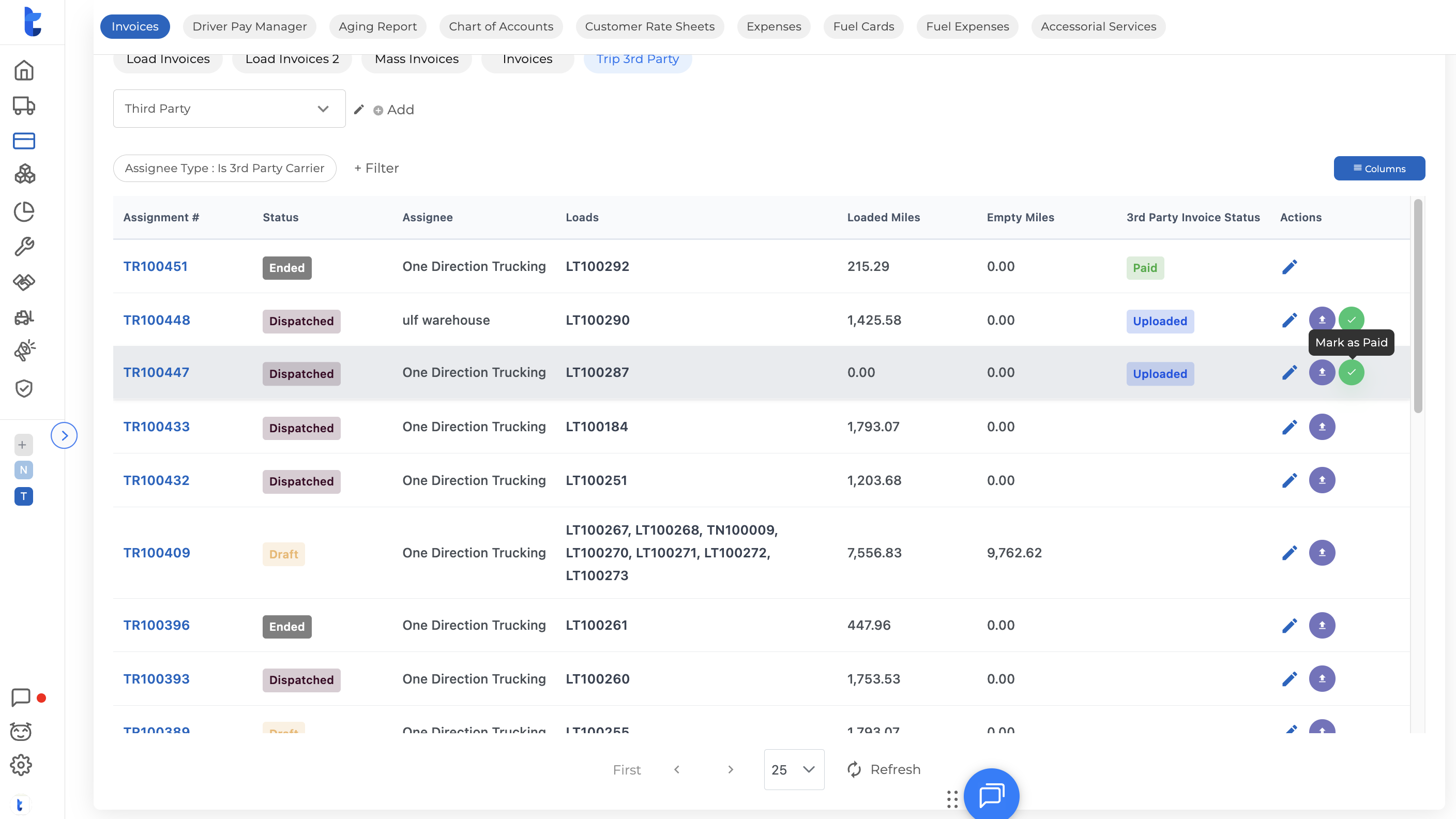
Third Party Invoice Status Reference
- Paid – Invoice has been uploaded and marked as paid.
- Uploaded – Invoice has been uploaded but not yet marked as paid.
Need Help? Reach out to us for any assistance at help@truckpedia.io