
Video on How to Save Addresses Inside Truckpedia
Step 1: Open Saved Addresses
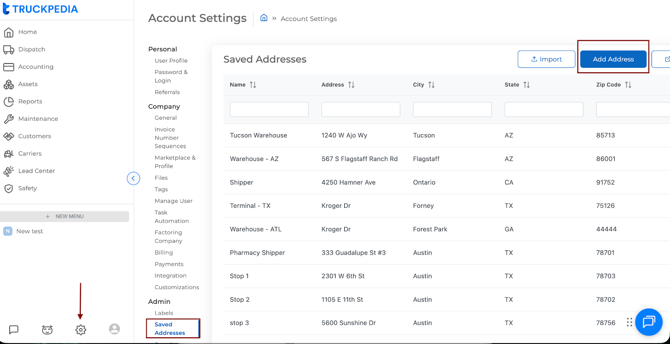
- Click the Gear Settings icon at the bottom-right corner of Truckpedia.
- Under the Admin section, select Saved Address.
Step 2: Add a New Address
- Click Add Address.
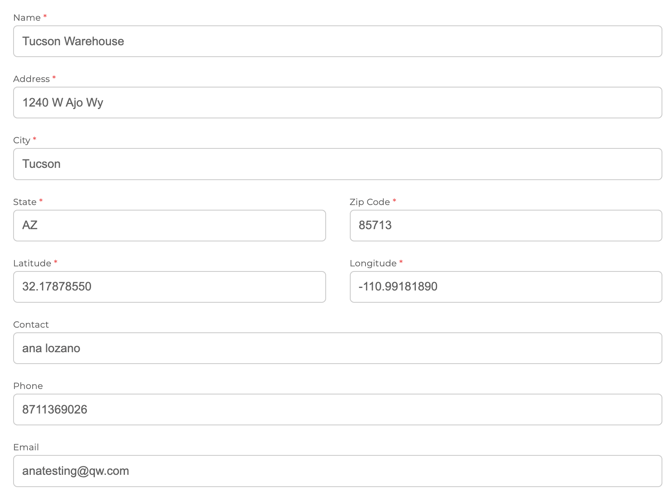
- A form will open. Fill in all required fields:
- Name
- Address
- City
- State
- Zip Code
- Latitude
- Longitude
- Name
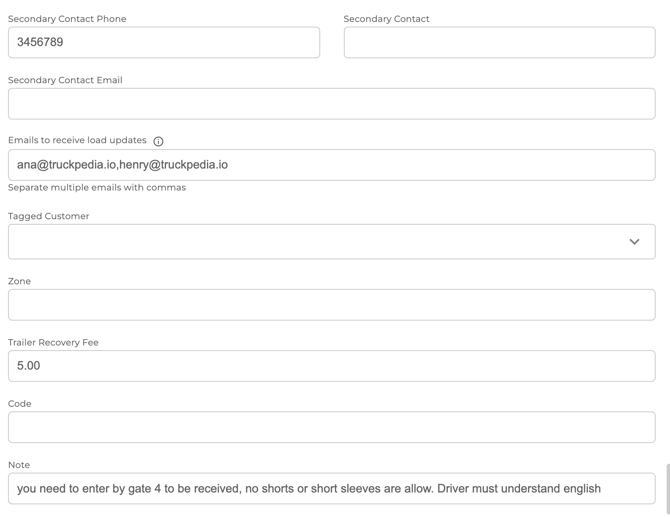
- Optional fields include:
- Contact name
- Phone
- Email
- Secondary contact details
- Emails to receive load updates
- Tagged customer
- Zone
- Trailer recovery fee
- Code
- Note
- Contact name
- Once completed, click Submit.
Your address is now saved and available for use anywhere in the Dispatch module.
How to Use Saved Addresses Inside a Load
Saved addresses can be applied during Step 4: Assign Driver and Equipment of any load.
Step 1: Open the Load
- Go to the Dispatch module.
- Open the load where you want to insert a saved address.
Step 2: Insert the Saved Address
- In Step 4: Assign Driver and Equipment, click the plus (+) icon under the stop sequence.
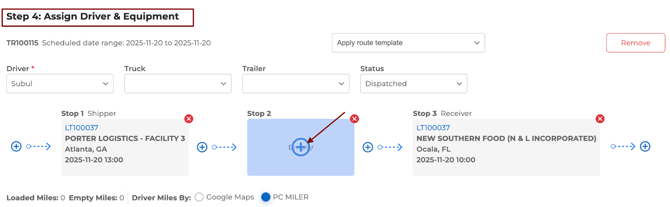
- A popup will appear with the option to choose one yard from saved addresses.
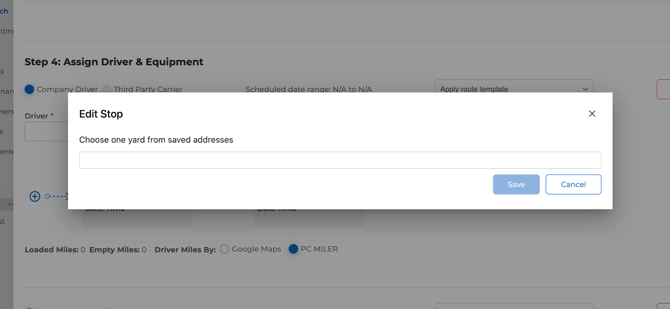
- Start typing the name of the saved address.
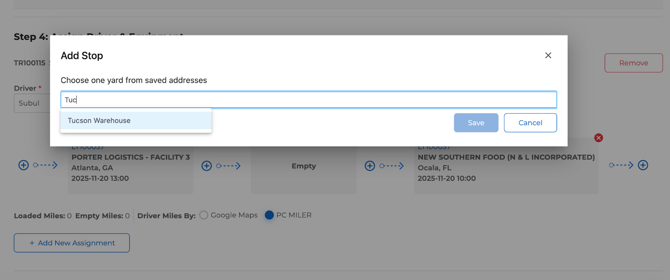
- Select the correct address from the dropdown list.
The saved address will be automatically inserted with all its details including city, state, and coordinates.
For questions, email help@truckpedia.io.