
Video on How to Invoice on Load Charge V2 in Truckpedia
To use Invoice V2, Load Charge V2 must be enabled on your account. Below is a step-by-step guide to generating invoices using Invoice V2 inside Truckpedia.
1. Ensure Load Charge V2 is Enabled
Open a load.
- Confirm that Load Charge V2 is active by checking the Charges tab. It will look different from Load Charge V1.
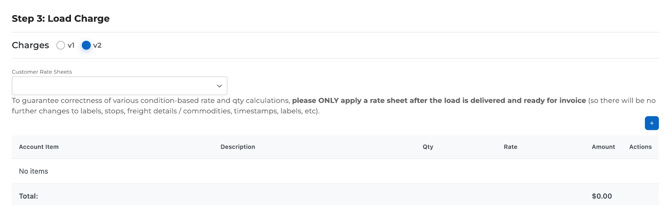
2. Add a Charge to the Load
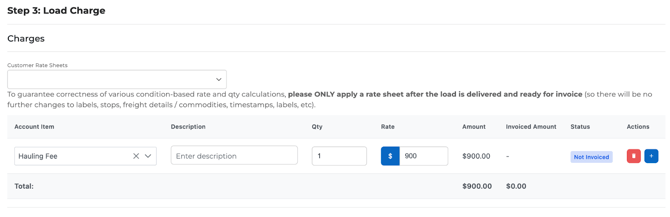
- Navigate to the Charges section in the load.
- Add the appropriate charge(s) (e.g., Hauling Fee).
- Click Submit to save the charge.
- The status will show as "Not Invoiced."
3. Generate Invoice (from Billing Tab)
- Open the Delivered load.
- Go to the Billing tab inside the load (not Accounting).
- Click Generate Invoice.
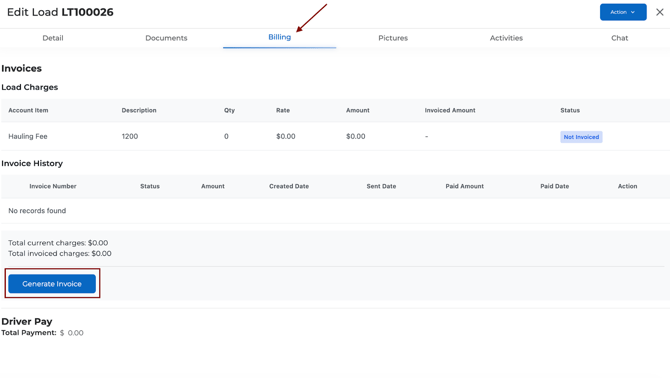
- A confirmation message will appear: “Invoice generated successfully.”
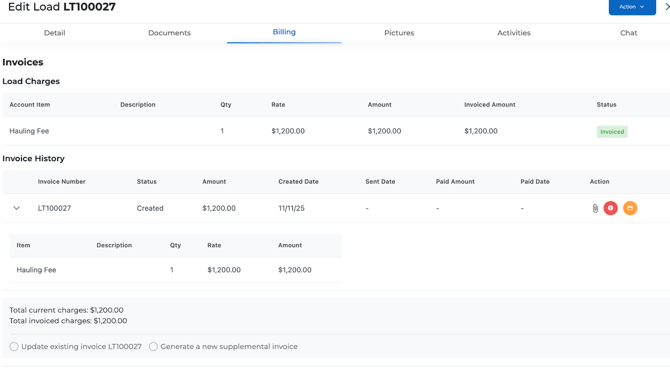
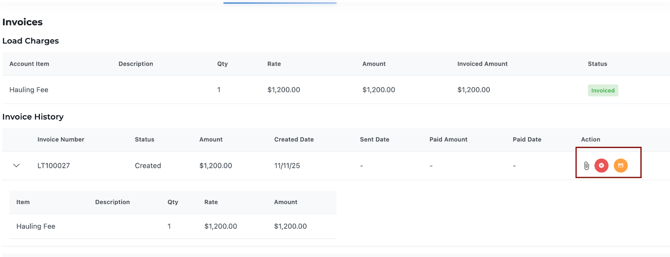
5. Invoice Actions
Once the invoice is generated, the following actions are available in the Billing tab:
- Download: View/download the PDF invoice.
- Void: Cancel the invoice.
- Request Payment: Sends the invoice to the factoring company or customer (based on integration).
- Mark as Paid: Enter payment date and amount to log payment.
6. Updating an Existing Invoice
If you need to update the amount:
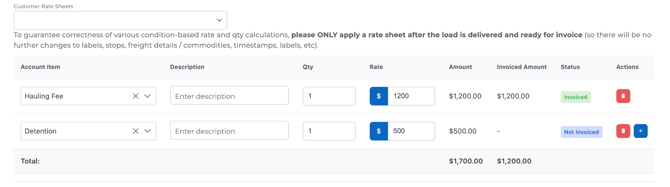
- Go to Detail tab.
- Edit the charges.
- Click Submit.
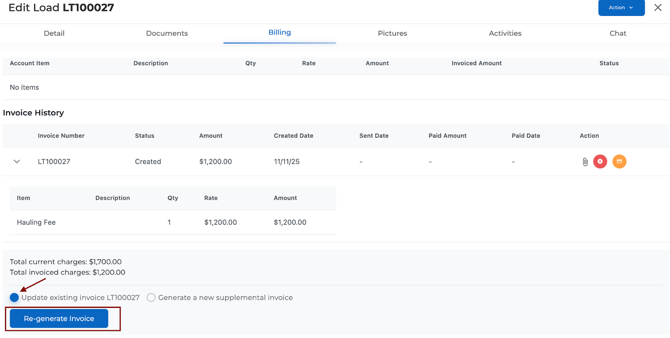
- Return to the Billing tab.
- Click Update Existing Invoice.
- Confirm update.
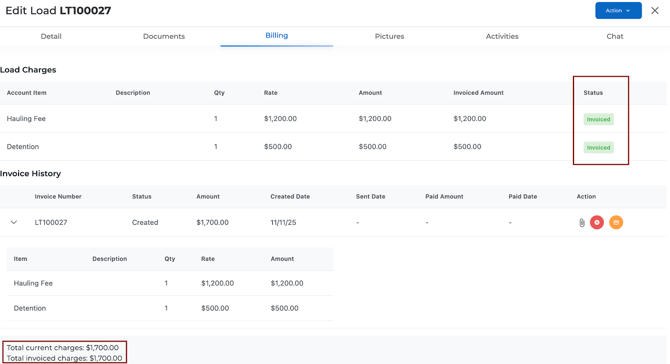
Important: Do not use “Update Existing Invoice” if the invoice has already been marked as paid. Instead, create a supplemental invoice.
7. Tracking Invoices (Invoice List View)
- Go to Accounting > Invoices.
- If it’s your first time, click Add List > List for Load Invoice.
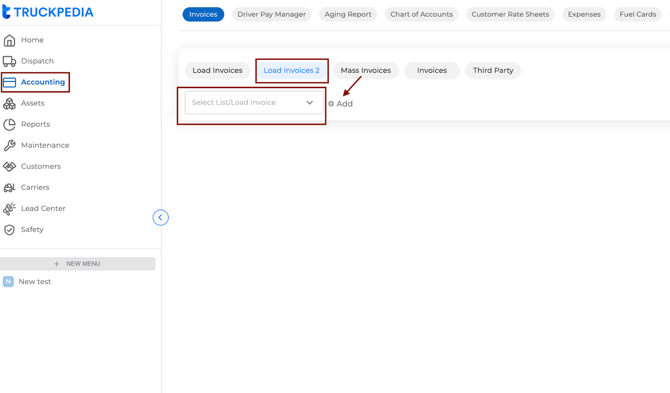
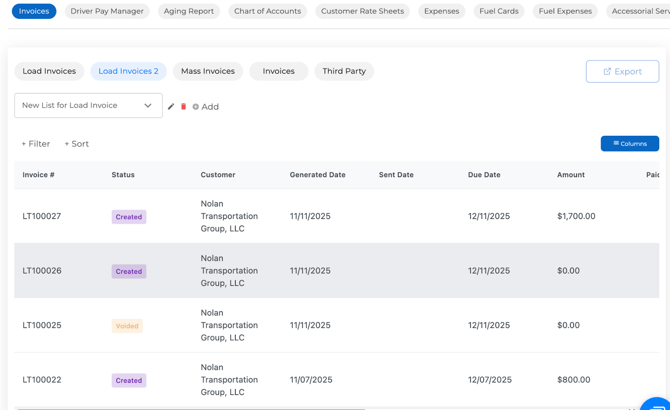
- You will now see all invoices created via V2.
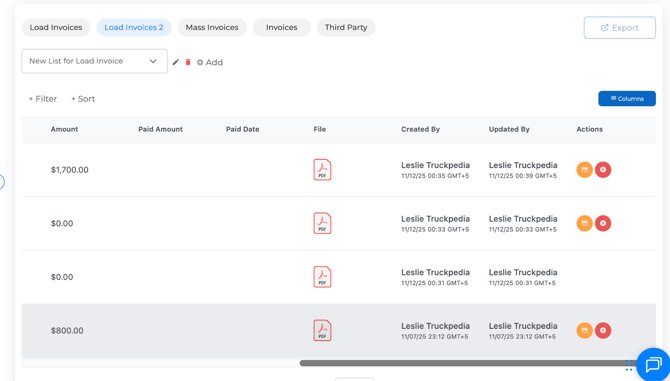
- You can view status, amounts, and download PDFs from here.
8. Documents and History
- Any uploaded BOL, Ratecon, or POD will automatically be attached when an invoice is sent.
For any questions, contact support at help@truckpedia.io.