
You can view our integration partners here. If you use a different fuel card provider, this article explains how to import that data into your account:
Step 1: Go to Accounting Section
Open the Accounting module
Step 2:Fuel Card and Driver Verification
To ensure the manual fuel import works correctly, you must verify the following:
- Fuel Card: Check if the fuel card is already added to the system. If not, you must add a new fuel card.
- Driver Assignment: The fuel card must be properly linked to the driver for the data to sync.
Note: This setup is required before you follow with the import of manual fuel. If the driver and fuel card are not in the system, the import will not work correctly.
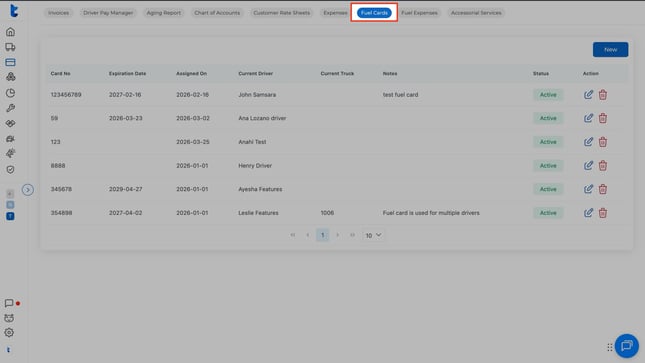
Step 3: Upload the Manual Fuel
In the list view at the top of the page, click on Fuel Expenses, then go to the Manual Import section. In this part, you can import a file or manually add the information needed.
Download our template here to make importing your data even easier.
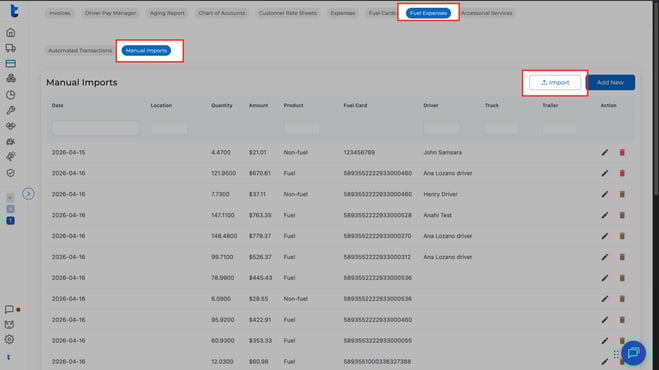
Click on Import. You must upload your fuel expenses document
.
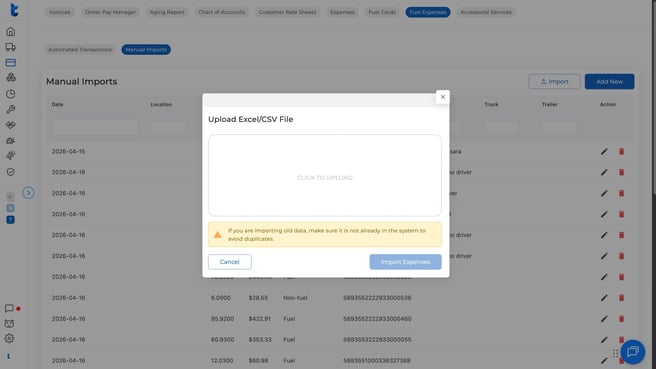
Once you upload your document, you can select the field for every column name. Mandatory fields are:
-
Date.
-
City.
-
State.
-
Quantity.
-
Amount.
-
Product: The type of fuel purchased (e.g., Diesel, Reefer, DEF).
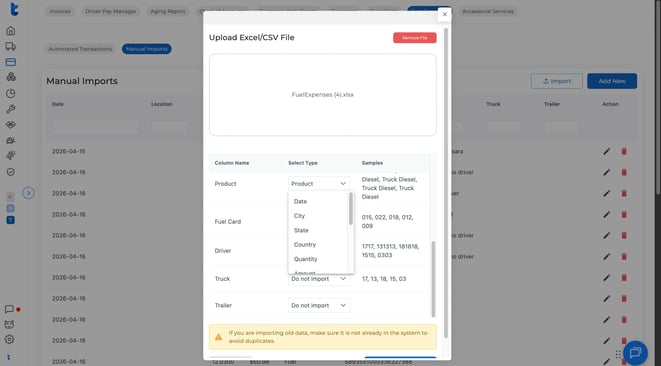
Once you add it, you will see the fuel expenses from your document successfully reflected in the system.
Quick Tip
Go to the Home section and click on the "Driver Overview" view at the top. You can filter or search for the specific driver to see the fuel expenses you added in the previous step.
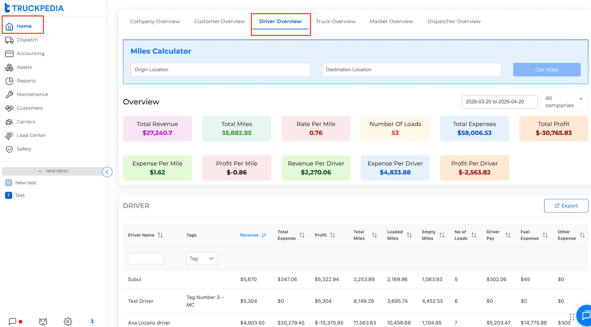
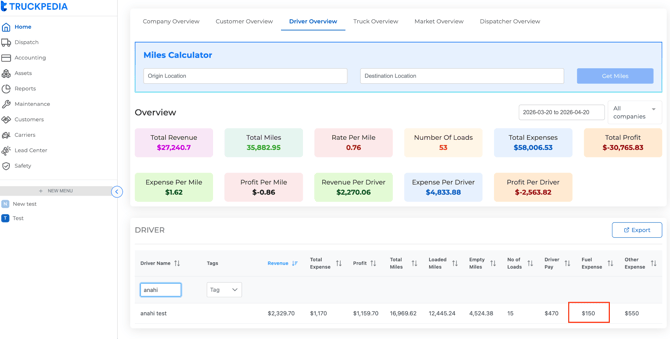
By looking up the exact Driver’s Name from the last step, you can verify that the expense has been successfully updated in the system.
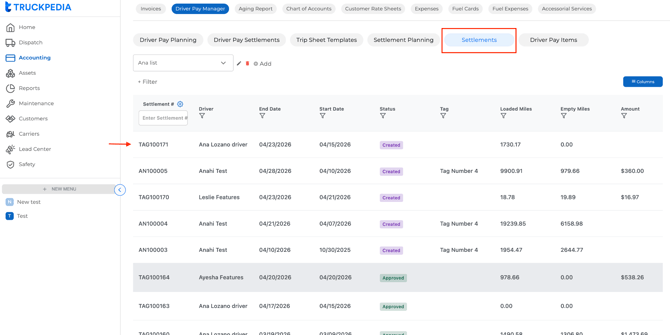
You can also check the expenses in the accounting section. To do so, go to Driver Pay Manager and then click on Settlements.
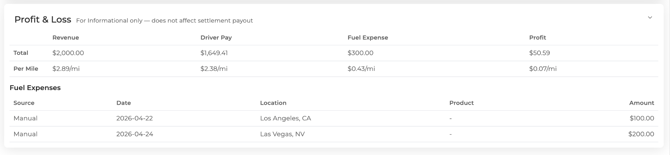
Once you are there, you can scroll down to the bottom and see the full breakdown of the driver's Profit and Loss
Need Help? If the empty miles aren't calculated as expected, ensure the previous trip for that driver has been marked as "Ended" or "Delivered."
Reach out to us for any assistance at help@truckpedia.io