
These actions automatically update:
- The Load Activities Log
- The Trailer Logs under Assets
This ensures the system records the exact moment a trailer was dropped or hooked and keeps trailer tracking accurate.
How Drivers can use Drop & Hook feature in the Driver App
Drop and Hook actions are performed inside the load screen in the Driver App.
Step 1 — Open the Load
- Open the Truckpedia Driver App
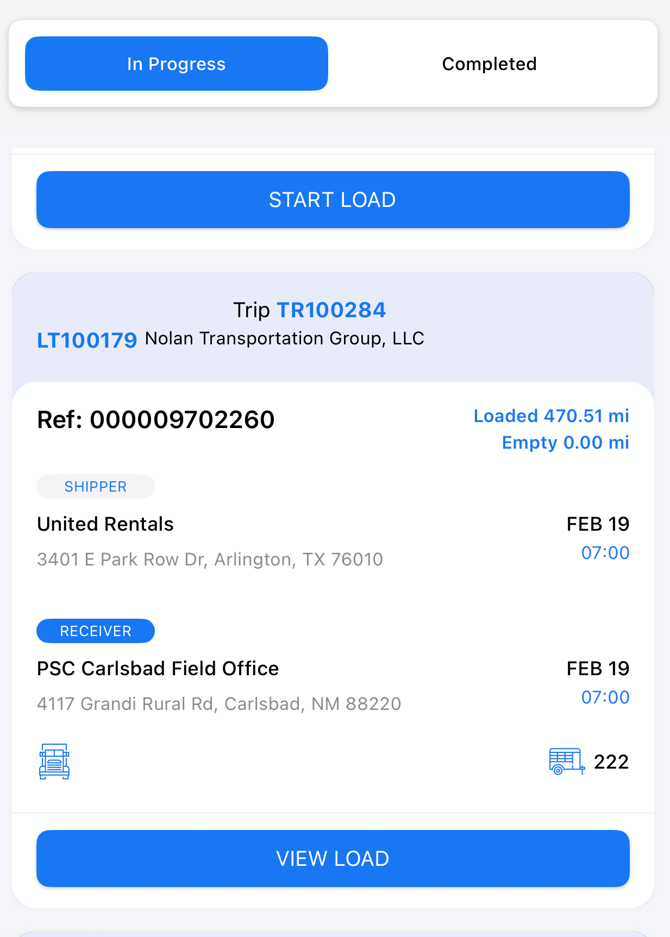
- Navigate to the In Progress tab
- Open the assigned load
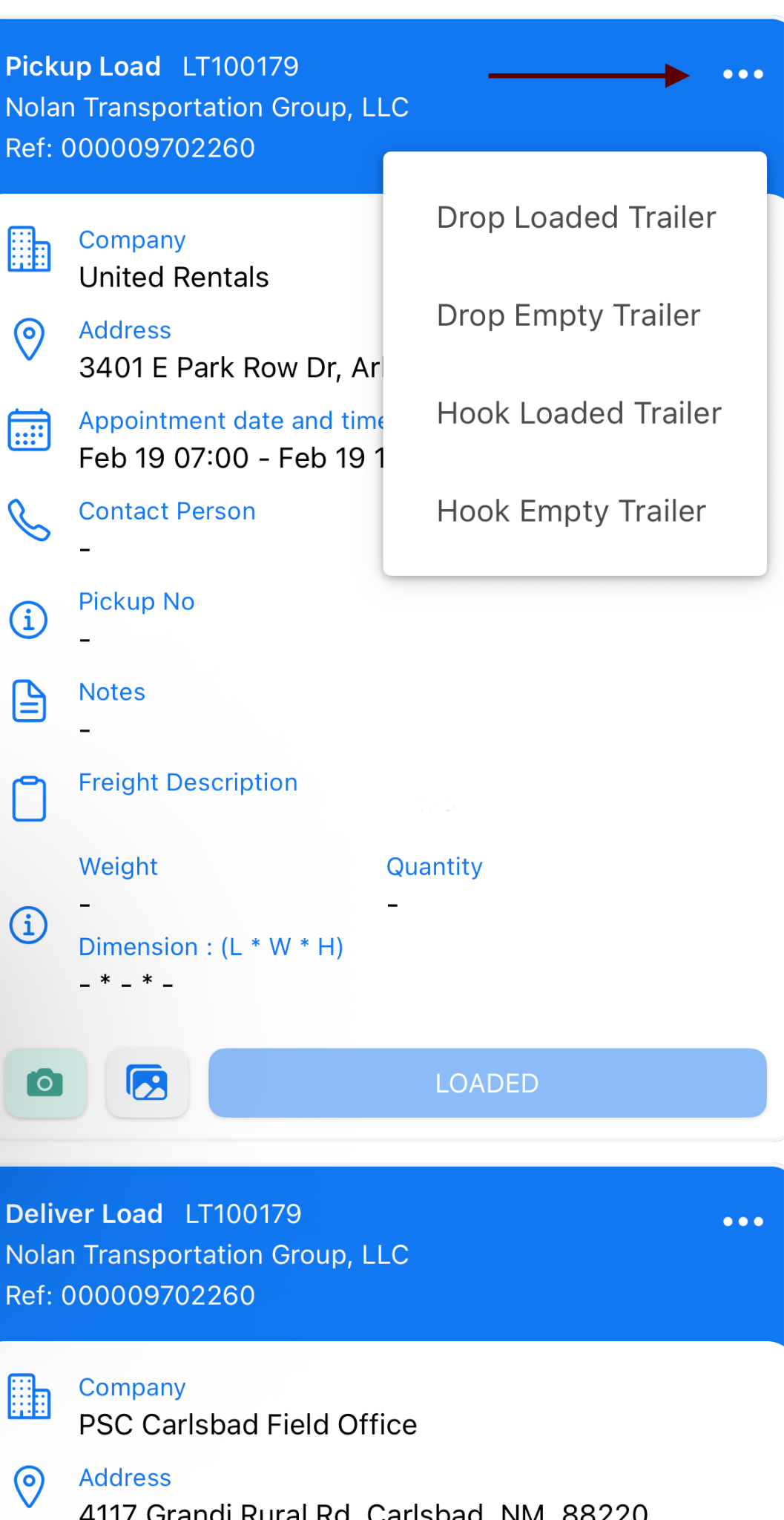
- In the top right corner, tap the three dots (•••) menu
- The trailer action menu will appear
- Select the trailer to be hooked/dropped
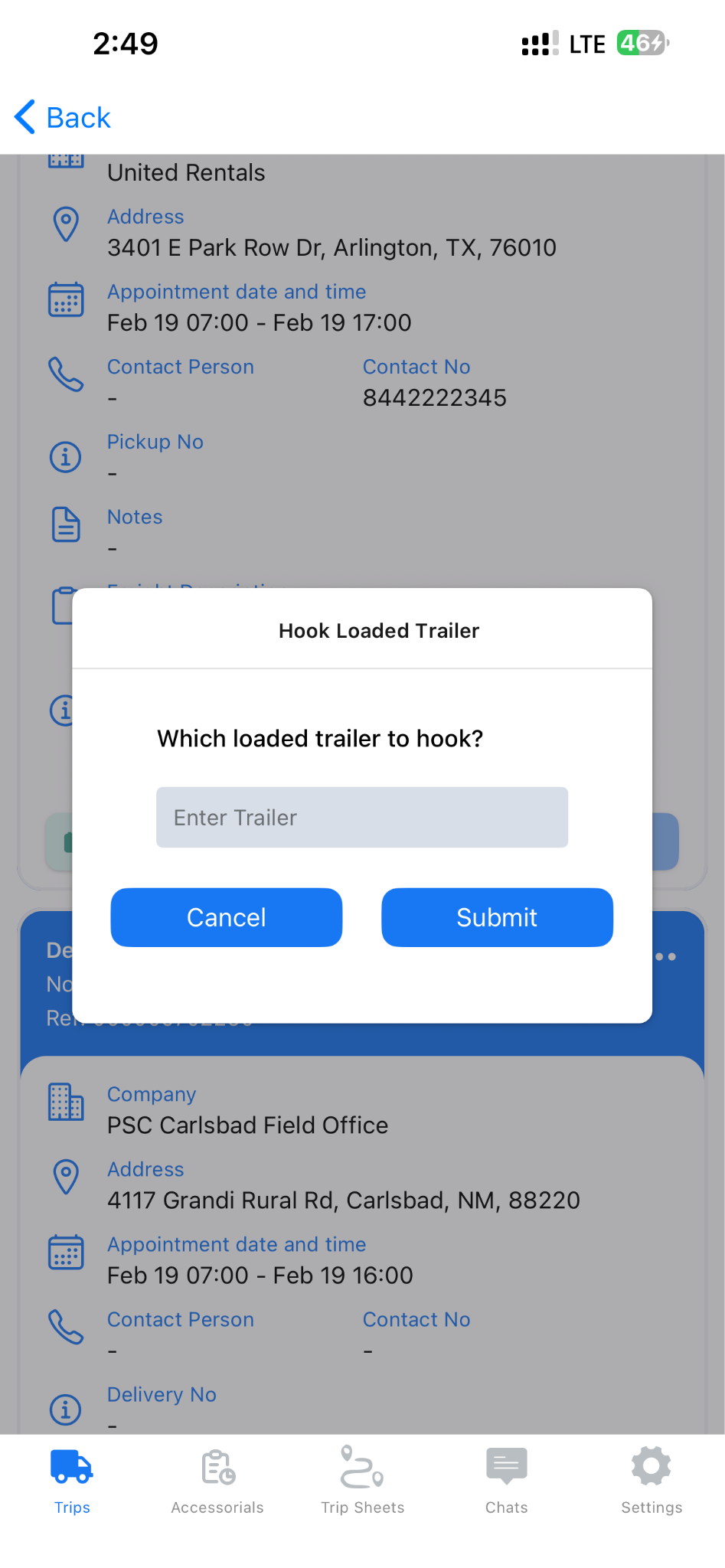
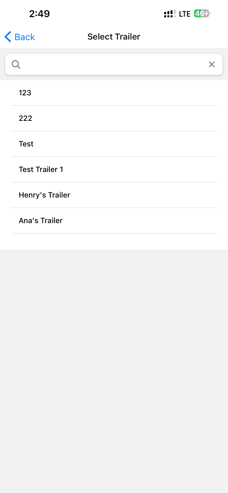
Once selected:
- The system records the event immediately
- The action is logged against the load
- Trailer history is updated automatically
.
Where Dispatchers See Drop & Hook Activity
Inside the load
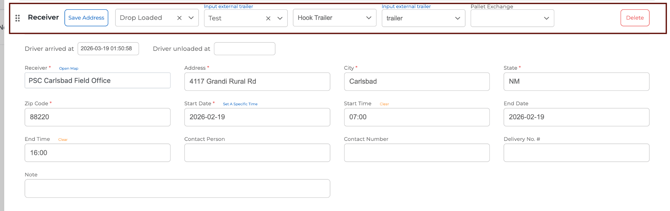
Trailer drop and hook information is also visible inside the Shipper and Receiver section of the load.
Open the load and navigate to Step 2: Shipper / Leg / Receiver. The stop details will show the trailer actions configured for that location.
This allows dispatchers to quickly see which trailer was dropped and which trailer was hooked at the shipper or receiver.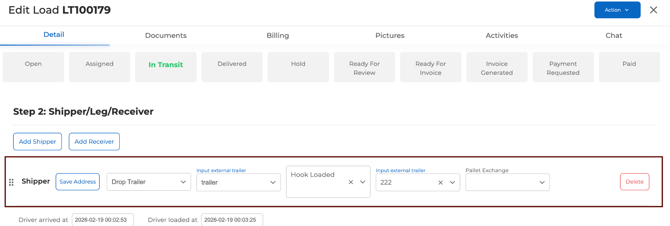
Dispatchers can also view Drop & Hook events inside the Load Activities tab.
Open the Load
- Go to Dispatch
- Open the relevant Load
Open Activities
Inside the load screen:
- Click Activities
This tab shows the full timeline of load actions.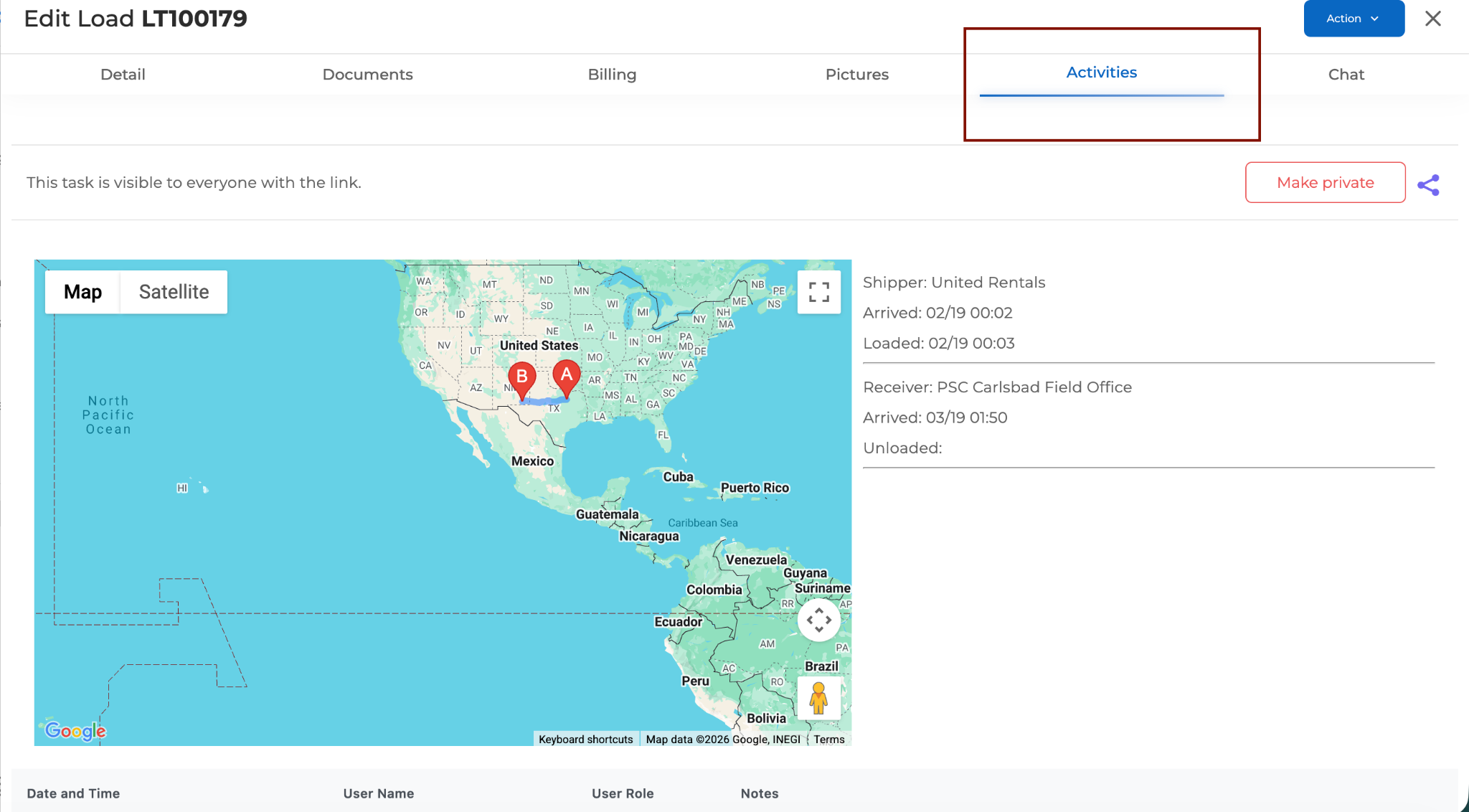
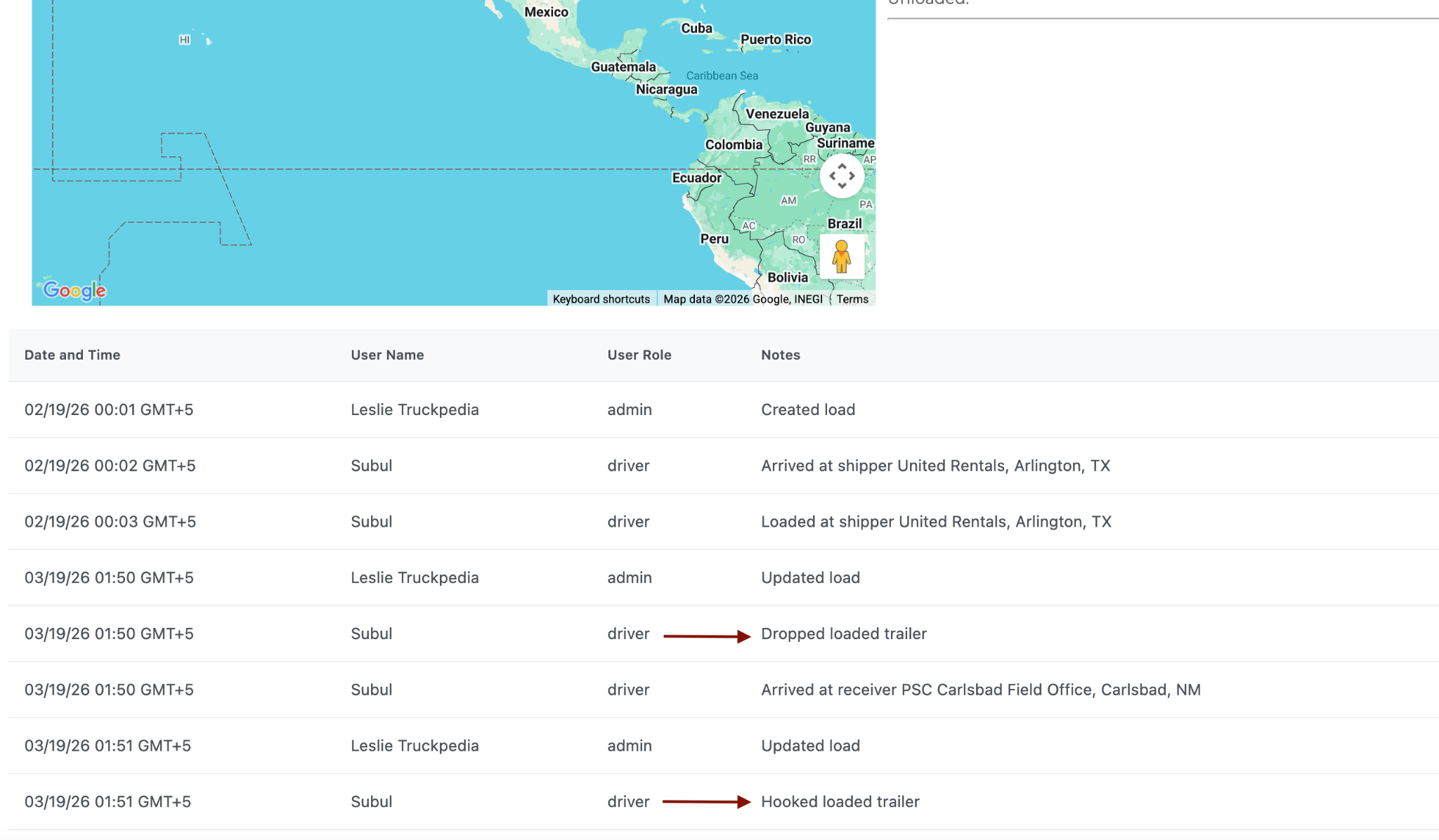
Example Events Logged
Typical events recorded include:
- Arrived at shipper
- Loaded
- Dropped loaded trailer
- Hooked loaded trailer
- Arrived at receiver
- Unloaded
Each entry includes:
- Date & time
- User who performed the action
- Role (Driver / Admin)
Where Trailer Movements Are Logged
All trailer drop and hook events are also recorded in Trailer Logs.
Location in the system
Assets → Trailers → Trailer Logs
Information Recorded
Trailer Logs show:
- Trailer number
- Status (Drop / Hook)
- Date and time
- Location
- Load number
- Shipper
- Receiver
- Driver
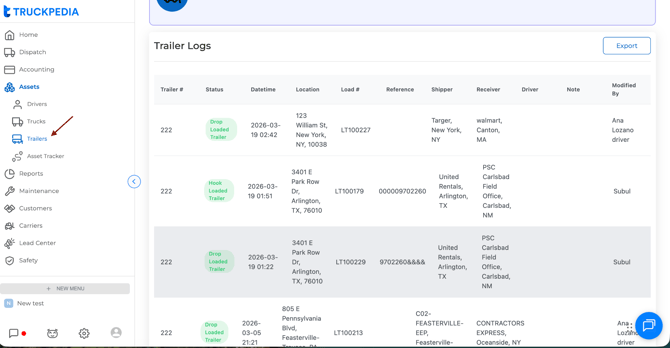
This allows dispatchers to track where each trailer was dropped or picked up.
Important Notes
- Drop & Hook actions must be performed from the Driver App.
- Each action automatically updates the load activity log.
- The same action also updates Trailer Logs for asset tracking.
- No manual dispatcher action is required.
For further questions, contact us at help@truckpedia.io.