
The Calendar View in Truckpedia allows you to manage and assign specific stops from multiple loads directly to drivers. This interface helps you visually organize pickups, deliveries, yard drops, and multi-driver workflows — even when a load is not handled by a single driver from start to finish.
🎥Step-by-Step Guide to Using the Calendar View🎥
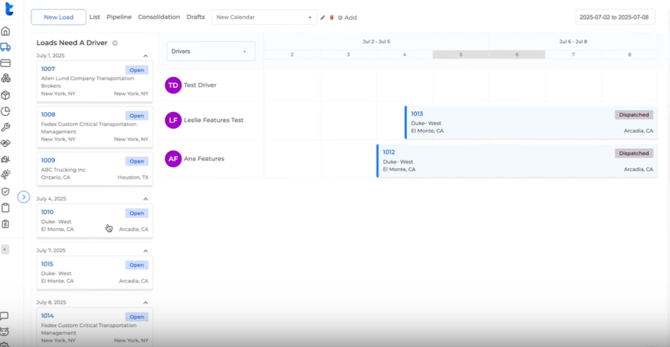
1. Open Calendar View
- Go to Dispatch > Calendar View
- On the left side, you’ll see open loads (not yet assigned to drivers).
- On the right side, you’ll see the calendar for all drivers.
2. Assign Pickups to the First Driver
- Click on a load (e.g. Load 1007 or 1008) to view its stops.
- You’ll see individual pickup and delivery stops.
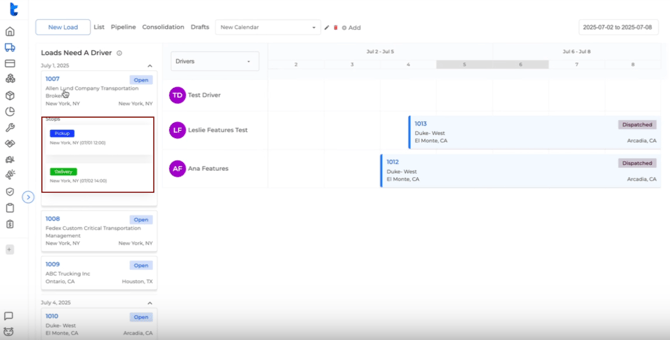
- To assign a pickup to a driver, drag the pickup stop and drop it onto the desired driver's calendar.
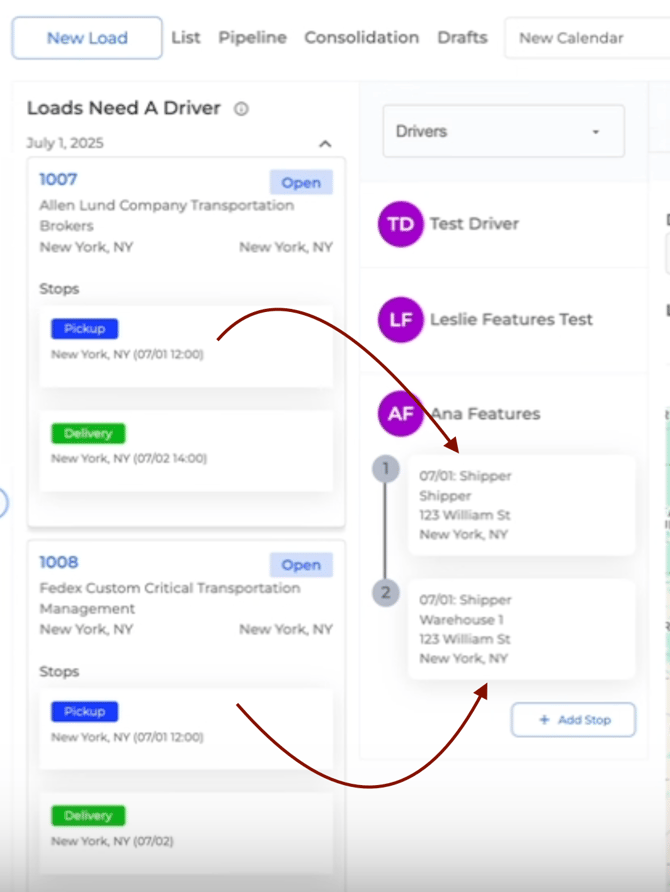
📌 Example: Drag the pickup stop for Load 1007 to Driver 1.
This creates a trip for the driver — without changing the original load structure.
3. Add a Yard Stop (if needed)
If the driver is dropping the trailer at your yard:
- Click Add Stop (do not drag from the load)
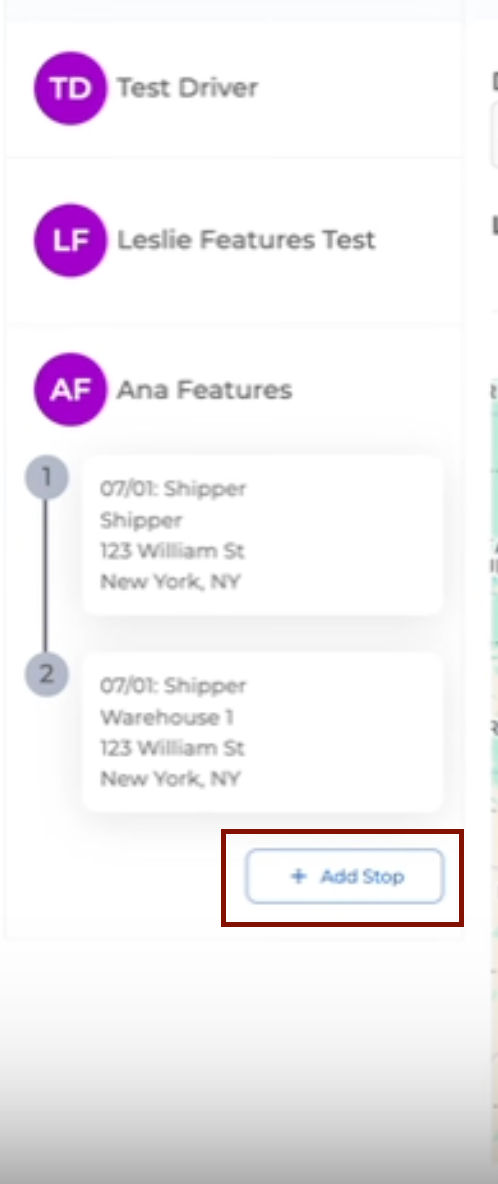
- Select the yard from Saved Addresses
- Assign the Date and Time
- This adds a stop like "Drop trailer at NY Yard"
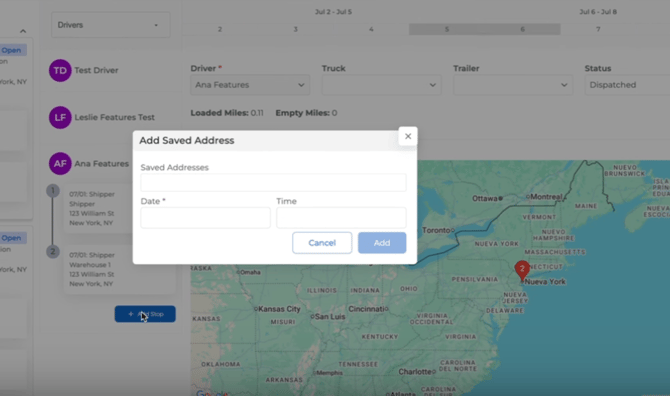
Click Save — this trip is now dispatched to Driver 1 and will appear in their app.
4. Assign Deliveries to a Second Driver
Now assign the deliveries to another driver (e.g. Driver 2):
- Drag the delivery stop from the same loads (1007, 1008) to Driver 2’s calendar
- You can adjust the order of stops if needed — for example, start from the yard and deliver to final destination
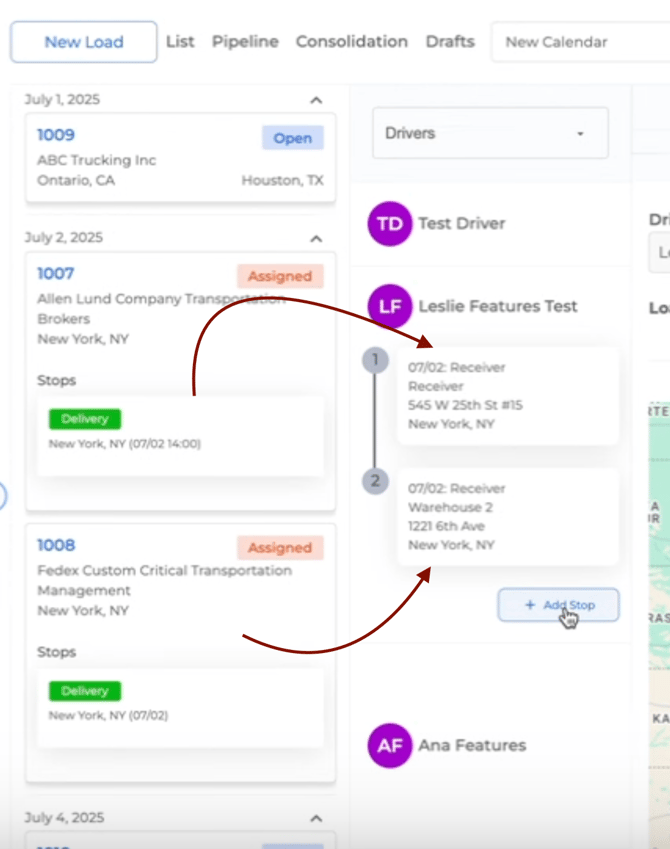
- Optionally, add a stop after delivery if Driver 2 is picking up a new load
Click Save when the trip is finalized.
5. Review Trips on Load Details
- Open any of the original loads (e.g., Load 1007)
- Go to Step 4: Assign Driver & Equipment
- You’ll see the pickup leg handled by ‘Driver 1’ and the delivery leg handled by ‘Driver 2’
- Both driver assignments appear clearly with their respective stops
Additional Notes
- You can assign trucks and trailers to each trip from the same calendar interface
- Drivers receive trip notifications in their Truckpedia Driver App
- This method ensures accurate tracking, driver-specific dispatching, and supports multi-leg delivery workflows
For further questions, contact us at help@truckpedia.io.