How to Automate Driver Pay – V3
Driver Pay V3 gives you a smoother way to automate driver pay. Once your rules are set, the system automatically picks up the correct pay items for each trip, reducing manual work and helping you stay consistent. The updated flow is easier to follow and keeps your driver pay process more accurate.
Driver Pay V3 automation in Truckpedia follows a structured flow. First you create your Account Items inside the Chart of Accounts. These become the selectable “Account Item” names that appear inside Driver Pay Manager. Then you create the actual driver pay rules (miles, rates, variables) inside the Driver Pay Manager and assign them to drivers. Once assigned, these rules automatically flow into settlements.
Below is the complete step-by-step workflow with the exact examples shown in screenshots
Video on How to Automate Drivers Pay
1. Create Account Items in Chart of Accounts
Before you can automate anything, you must create the Account Items that will appear in the “Account Item” dropdown when building driver pay rules.
Where to create them
Navigate to:
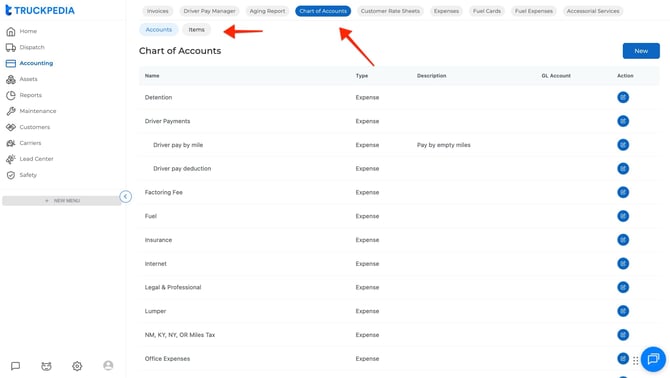
Accounting → Chart of Accounts → Accounts → Items tab → New
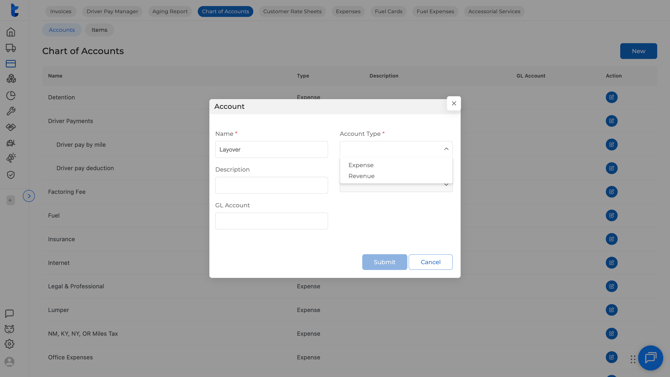
This opens the “Create Account Item” popup (shown in your screenshot), containing:
- Name
- Description
- Income Account
- Expense Account
- Code
What these items represent
These are accounting-level categories such as:
- Hauling Fee
- Fuel Surcharge
- Lumper
- Detention
- Hourly Rate
- Driver pay per Miles
These are NOT driver pay rules yet.
They simply define the category that will later be used to build driver pay logic.
To automate mileage-based driver pay, you must first create:
Account Item: Driver pay per Miles
This ensures “Driver pay per Miles” appears in the dropdown when creating mileage rules.
2. Create Driver Pay Rules in Driver Pay Manager
Once the Account Items exist, the next step is to configure the actual driver pay rules.
Navigate to:
Accounting → Driver Pay Manager → Driver Pay Items tab → Create New Driver Pay Item
This is where Truckpedia asks for:
- Account Item (from Chart of Accounts)
- Description (your custom label)
- Mode (By Variable, Flat Fee, By Percentage)
- Variable (Loaded Mile, Empty Mile, Load Amount)
- Rate (numeric value)
- Model (Trip Pay or Settlement Adjustment)
- Drivers (who should receive this pay item)

3. Apply Driver Pay Rules to Drivers
There are two ways to apply driver pay rules:
Method A: Apply from Driver Pay Manager
Inside the same tab:
Accounting → Driver Pay Manager → Create new Driver Pay Items
Under drivers: You select all the drivers you want this rule to apply to and then hit save.

You can apply one rule to many drivers or multiple rules to a single driver.
Method B: Apply from the Driver Profile
Navigate to:
Assets → Drivers → Select Driver → Accounting
Step 1 — Ensure Driver Pay V2 is selected
Under Compensation, you must enable:
✔ Driver Pay V2

Step 2 — Go to the Driver Pay tab
Here you can:
- Create New Driver Pay Item
(same form as Driver Pay Manager)
or
- Apply Existing Driver Pay Item

Once applied, the driver is fully automated for settlement.
4. Automated Values in Settlements
These are the rules applied to a specific driver (in this case Subul)

When you generate a settlement, Truckpedia automatically pulls in all driver pay rules assigned to that driver (in this case Subul)
Payment Items
- Driver pay per Miles – empty miles SH
- Quantity: 0
- Rate: $1.00
- Payment: $0.00
- Quantity: 0
- Driver pay per Miles – loaded miles SH
- Quantity: 1286.44
- Rate: $1.50
- Payment: $1,929.66
- Quantity: 1286.44
Payment Adjustment
- Hauling Fee
- Quantity: 2053.5
- Rate: 50%
- Amount: $1,026.75
- Quantity: 2053.5
These values are pulled directly from the Driver Pay Items assigned to the driver.
You can still edit before approval
- Adjust quantity
- Adjust rate
- Add items
- Delete items

Once approved → settlement becomes locked.
Final Summary
To automate Driver Pay V3 correctly:
STEP 1 — Chart of Accounts → Items
Create the base Account Items that appear in the “Account Item” dropdown.
Examples: Hauling Fee, Driver pay per Miles, Lumper, Hourly Rate.
STEP 2 — Driver Pay Manager → Driver Pay Items
Build the actual driver pay rules using Mode + Variable + Rate + Model.
Examples:
- loaded miles SH @ $1.50
- empty miles SH @ $1.00
- loaded miles S @ $0.46
- hauling fee @ 50%
STEP 3 — Assign rules to drivers
Either through Driver Pay Manager or the driver’s profile.
STEP 4 — Automated settlements
Rules auto-calculate mileage, percentages, and amounts during settlement creation.
For further questions, contact us at help@truckpedia.io.