
Create a New List
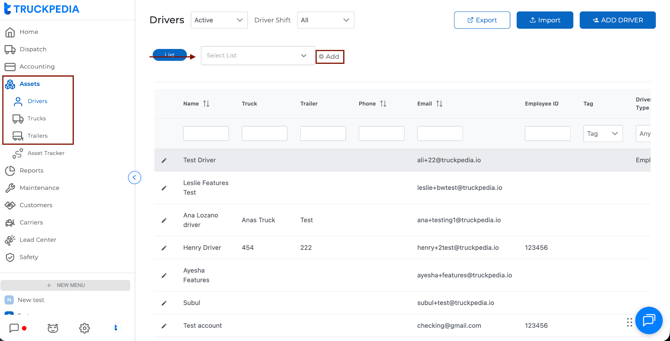
- Go to Assets
- Select:
- Drivers, Trucks, or Trailers
- Click List
- Click + Add
- Select Add List
- A new list will be created
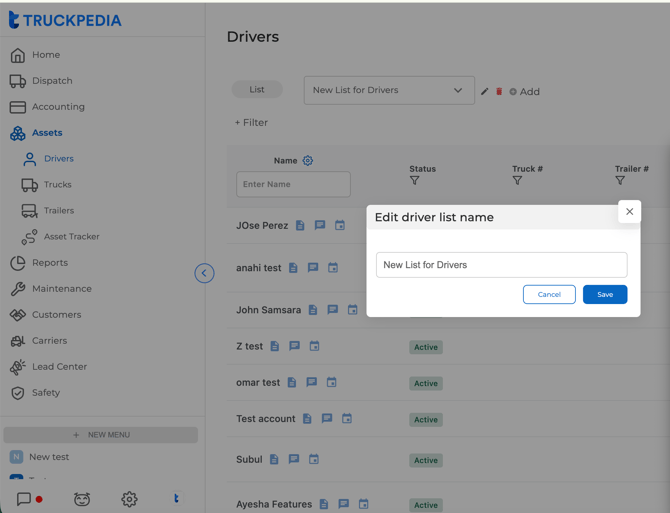
Rename the List
- Click the pencil icon next to the list name
- Enter the new name
- Click Save

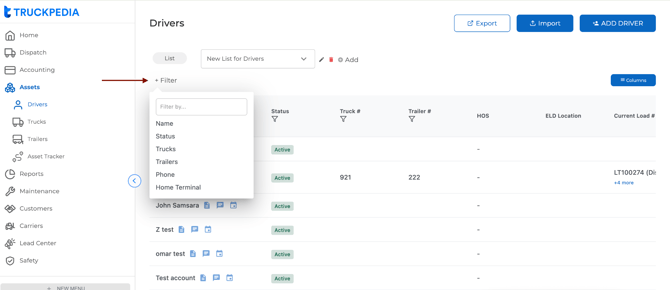
Apply Filters
- Click + Filter
- Select the field you want to filter by (e.g., Name, Status, Truck, Trailer, Phone, etc.)
- Apply your desired filter conditions
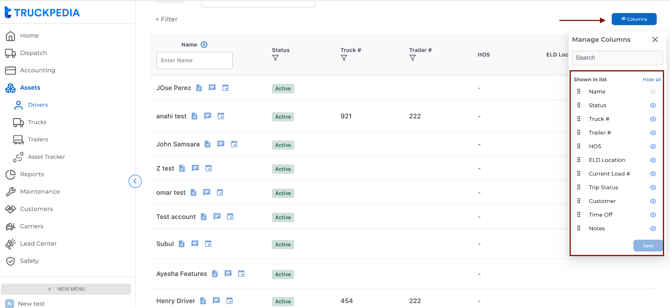
Customize Columns
- Click Columns (top right)
- In Manage Columns:
- Use the eye icon to show/hide columns
- Reorder columns if needed
- Click Save
Behavior
- Lists save:
- Applied filters
- Selected columns
- You can switch between lists using the dropdown
- Each module (Drivers, Trucks, Trailers) maintains its own lists independently
Column Data Behavior
Drivers List
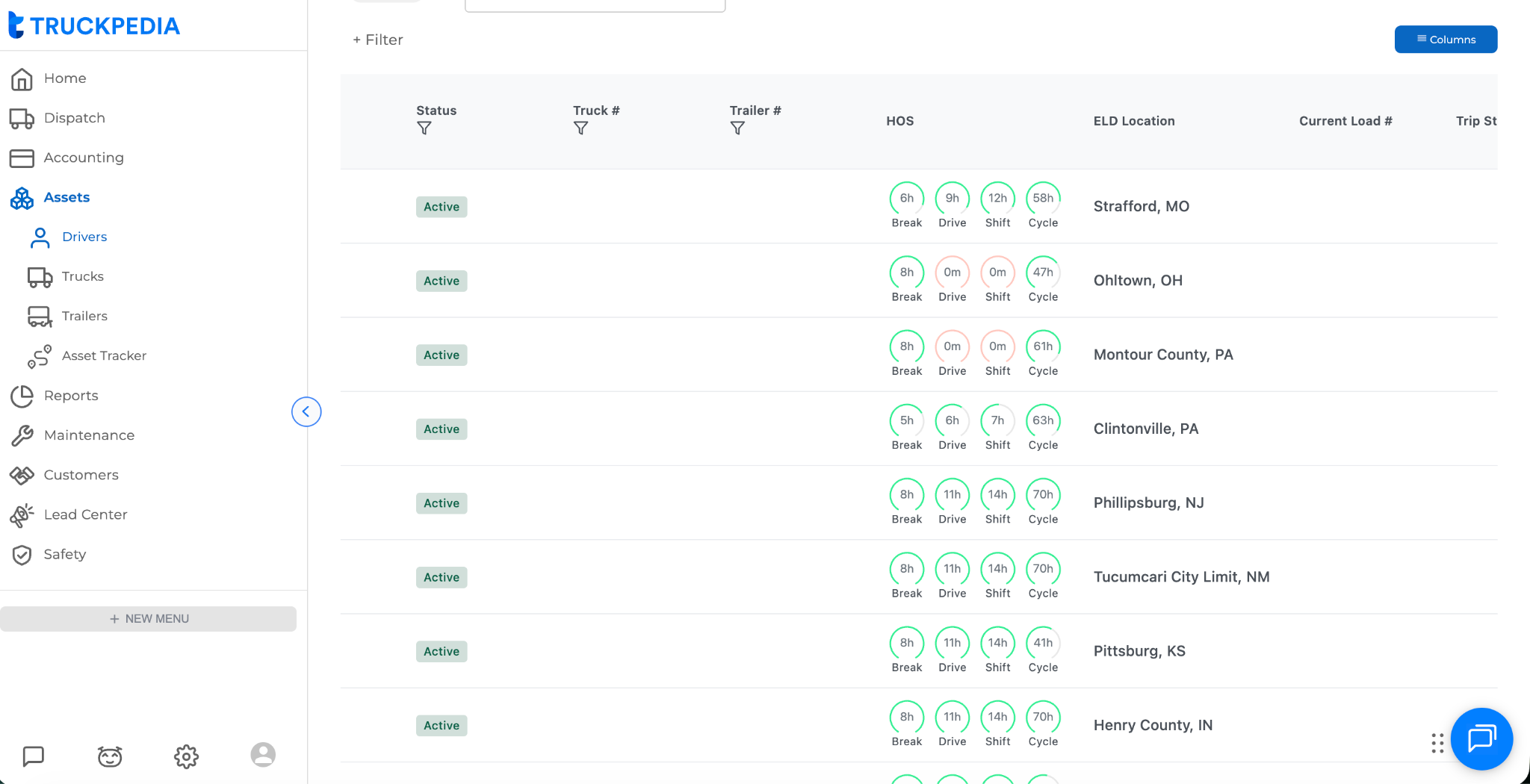
- HOS (Hours of Service) is displayed as circular indicators showing:
- Break
- Drive
- Shift
- Cycle
- Values are shown in hours and are pulled from the ELD integration
- ELD Location displays the driver’s latest tracked location based on ELD data
Trucks And Trailers List
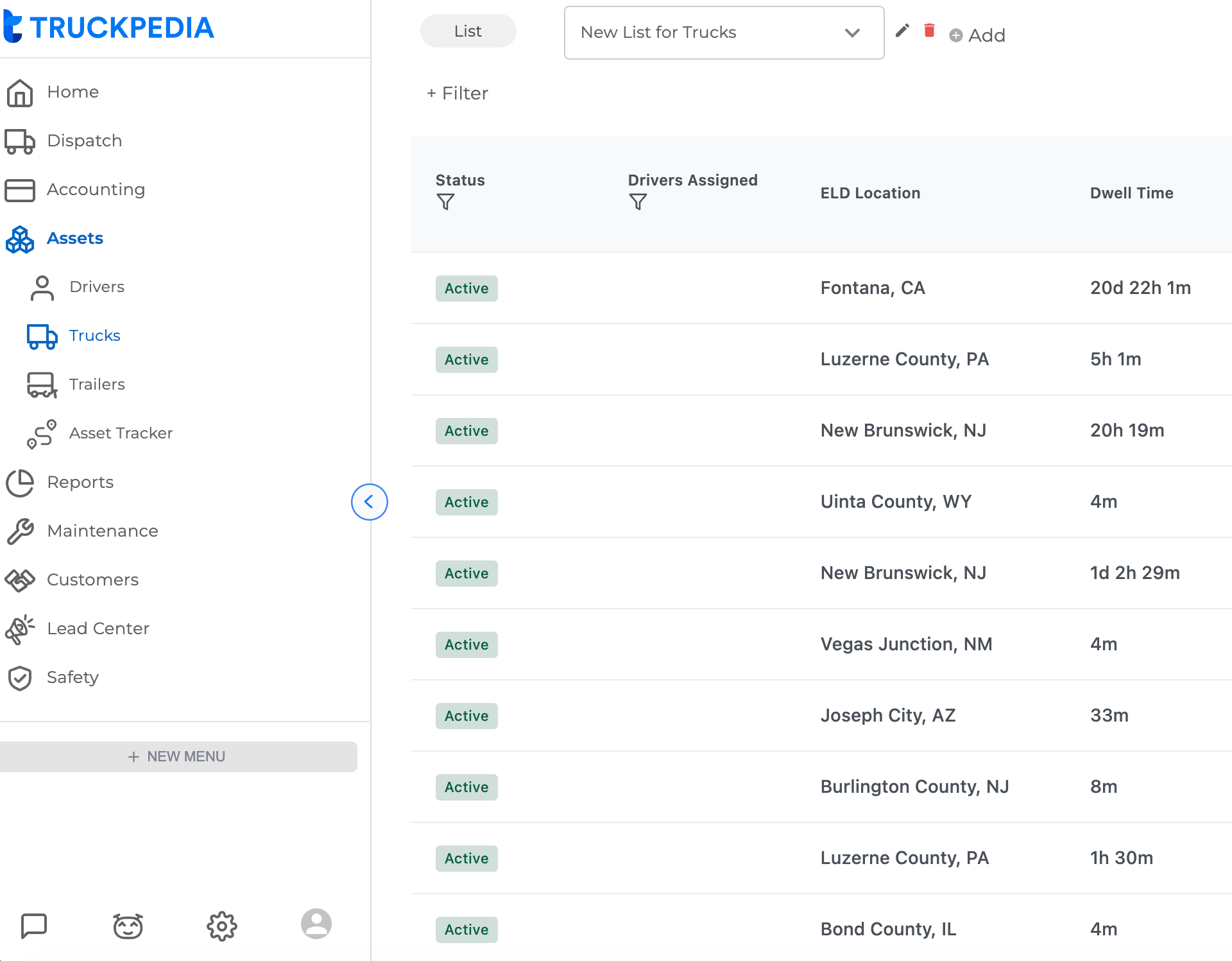
- Dwell Time shows the total time a truck has been stationary at its current location
- Calculated based on location updates from the ELD integration
- Maintenance Alerts are displayed as status indicators:
- Green check = No maintenance alerts
- Hover shows additional context (e.g., “No maintenance alerts”)

For further questions, contact us at help@truckpedia.io. - Lists save: