
Video on How to Create a Secondary Invoice in Load Charge V2
In Truckpedia's Load Charge V2 and Invoice V2 system, you can generate supplemental invoices for scenarios where additional charges (such as detention, layovers, or accessorials) were missed in the initial invoice. These are treated as separate invoice documents with distinct identifiers but are linked to the same load.
This guide will walk you through the correct process to create a secondary invoice in Load Charge V2.
Prerequisites:
- The load must be in Delivered status.
- Load Charge V2 must be enabled on the load.
- The original invoice must already be created using Invoice V2.
- You must have additional charges not included in the original invoice.
Step-by-Step: Creating a Supplemental Invoice
1. Navigate to the Load
- Go to Dispatch > New List View
- Open the load that has already been invoiced.
2. Add the Additional Charge(s)
- Inside the load, go to the Detail tab.
- Scroll to step 3 Load Charge
- Enter the charge details (e.g. “Lumper”, $150). If the charge item doesn’t appear in your dropdown, click here to learn how to create a new item. (will add link later)
- Click Submit to save the updated charge data.
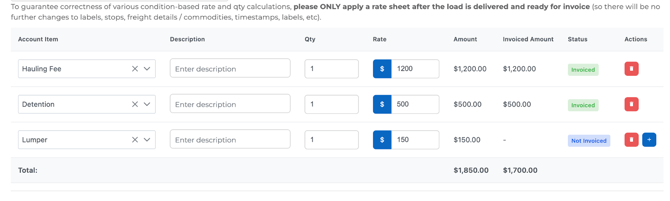
Note: Adding this charge alone does NOT update the original invoice. You must generate a new invoice document to capture this new charge.
3. Navigate to the Billing Tab
- Still within the load, go to the Billing tab.
4. Generate the Supplemental Invoice
- Choose the option Generate Supplemental Invoice.
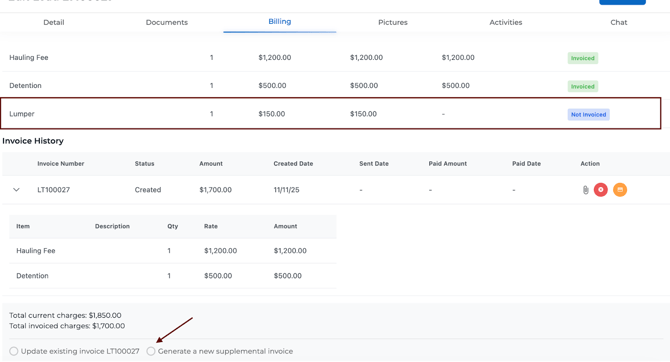
- Now you will see a Generate New Invoice button. Click on it.
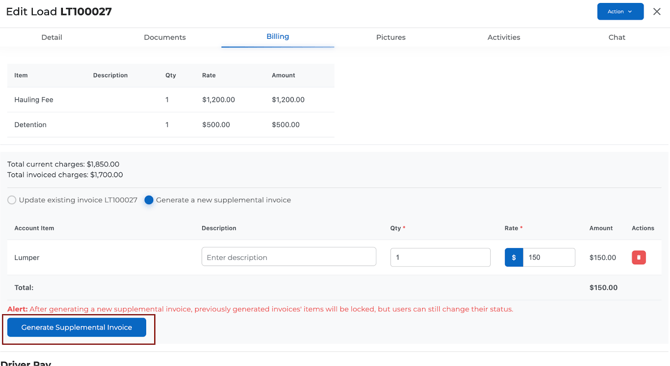
This will create a second invoice document. The invoice number will automatically include a letter (e.g., LT100027A) to indicate it's a supplemental invoice tied to the original (LT100027).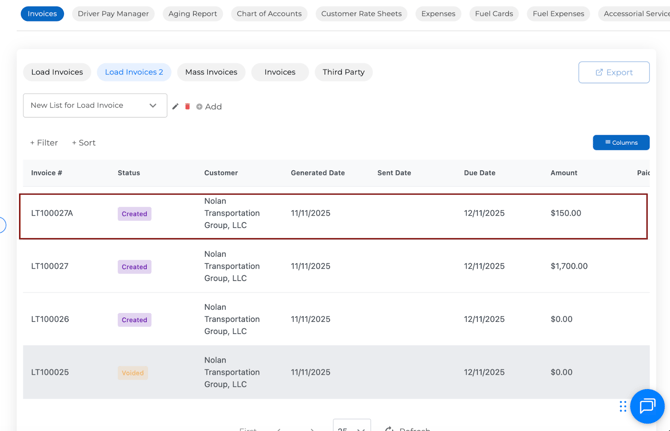
5. Review and Send
- The new invoice will contain only the new charge(s) added after the original invoice.
- You can now:
- Download PDF
- Request for Payment
- Void if needed
- Download PDF
Note: Once you create a supplemental invoice, you can no longer edit the original invoice.
View and Manage All Invoices
- Go to Accounting > Load Invoices (V2)
- You will see both the original and supplemental invoices listed.
- Each invoice will show its current status (e.g., Draft, Sent, Paid).
FAQ:
Q: What if the Generate Supplemental Invoice option isn’t showing?
A: You likely haven't added a new charge after the last invoice. Add a new charge first, then revisit the Billing tab.
Q: Can I update the original invoice instead?
A: You can only update the original invoice if it hasn’t been marked as paid. Otherwise, use a supplemental invoice.
Q: Will all attachments (BOL, POD, RateCon) send with supplemental invoices?
A: Yes, as long as those documents are uploaded under the load, they will send automatically.
By following this process, you ensure that all revenue items are accounted for in your load without overwriting the original invoice record. This helps maintain clean payment trails and reduces confusion for factoring or accounting teams.
Let us know if you have any questions or issues using supplemental invoices.
For any questions, contact support at help@truckpedia.io.