
Step 1: Open Digital Form Templates
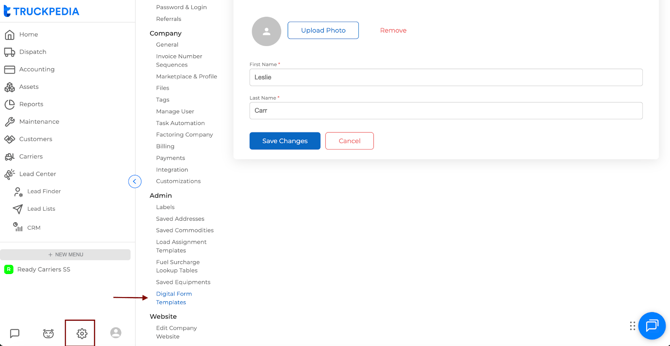
- Click the Settings (gear icon) at the bottom left.
- Scroll down to the Admin section.
- Click Digital Form Templates.
- Select Add Template.
Step 2: Enter the Template Name
At the top, enter your form name:
Template Name:
Pre-Trip Inspection Checklist
This is the name drivers will see inside the Driver App.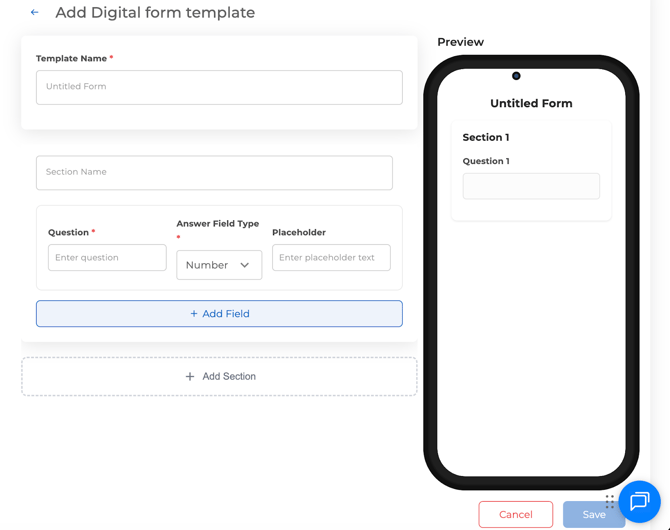
Step 3: Create Section 1 — Vehicle Information
Click into the first section field and enter:
Section Name:
Vehicle Information
This groups your related questions together in the form.
Step 4: Add Form Fields
You will now add each question one by one.
Field 1
Question: Truck Number
Answer Field Type: Text
Placeholder: Enter truck number
Use this field for drivers to identify the assigned truck.
Field 2
Question: Trailer Number
Answer Field Type: Text
Placeholder: Enter trailer number
Use this when the driver is pulling a trailer and needs to record it.
Field 3
Question: Odometer Reading
Answer Field Type: Number
Placeholder: Enter current mileage
This allows the driver to enter the exact mileage at the time of inspection.
Step 5: Preview the Form
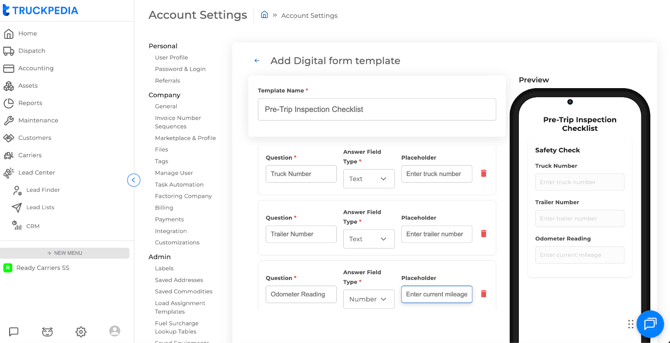
On the right side, you will see a live mobile preview.
This shows exactly how the driver will see the form inside the Driver App.
Check that:
- The section name appears correctly
- All questions display with the correct input types
- Placeholders appear as intended
Step 6: Save the Template
Once all fields are added and verified, click Save.
The template is now ready for use and can be completed digitally by your drivers.
What This Form Example Covers
This example shows a simple but commonly used workflow for carriers:
- Identifying truck & trailer numbers
- Capturing odometer reading
- Ensuring the fleet keeps a digital record of inspections
How Drivers Access and Submit Digital Forms
Here’s how it works:
📹 WATCH -STEP-BY-STEP-VIDEO 📹
Drivers can fill out Digital Forms directly from a load in the Driver App.
- Open the assigned load.
- Tap the camera icon.
- Select Digital Forms from the list.
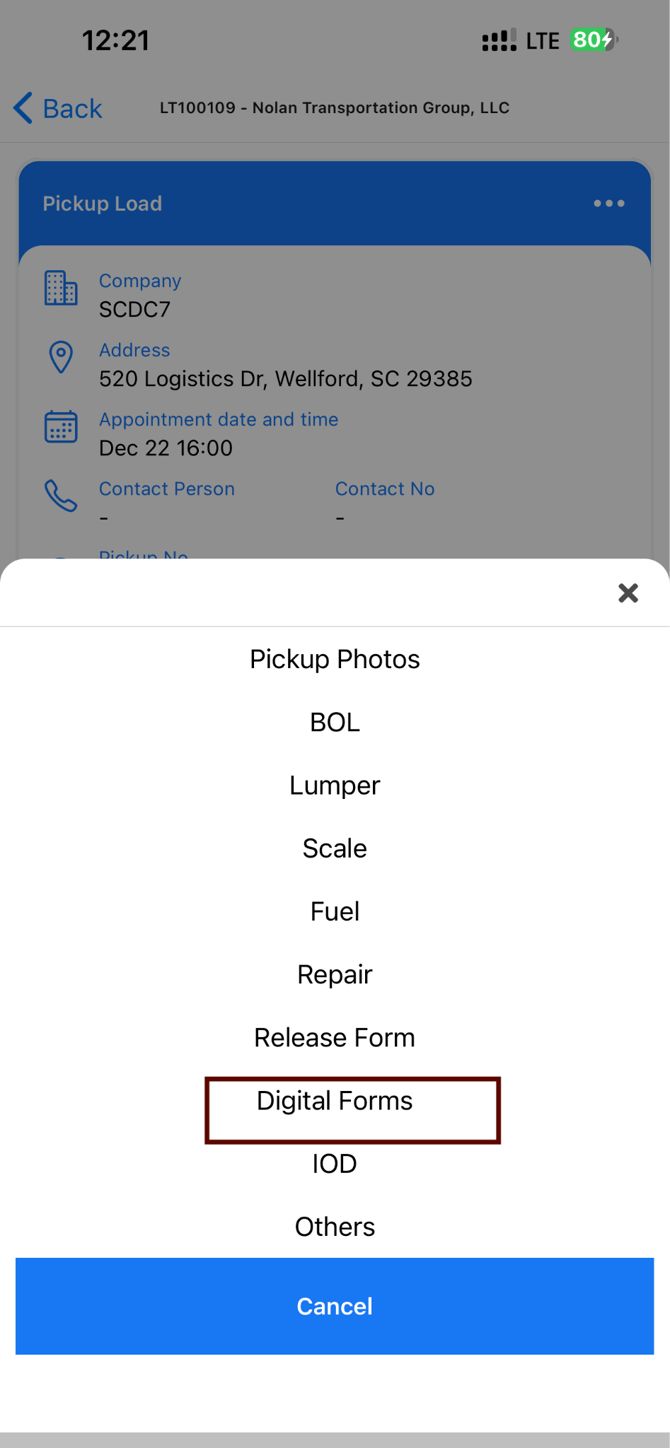
- Choose the form you want to complete (for example, a Pre-Trip Inspection).
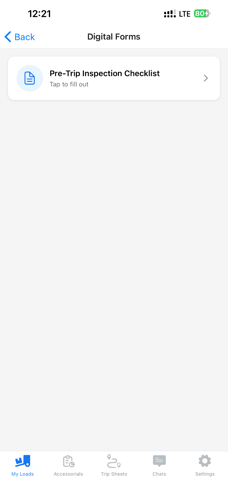
- Fill out the required fields and tap Submit.
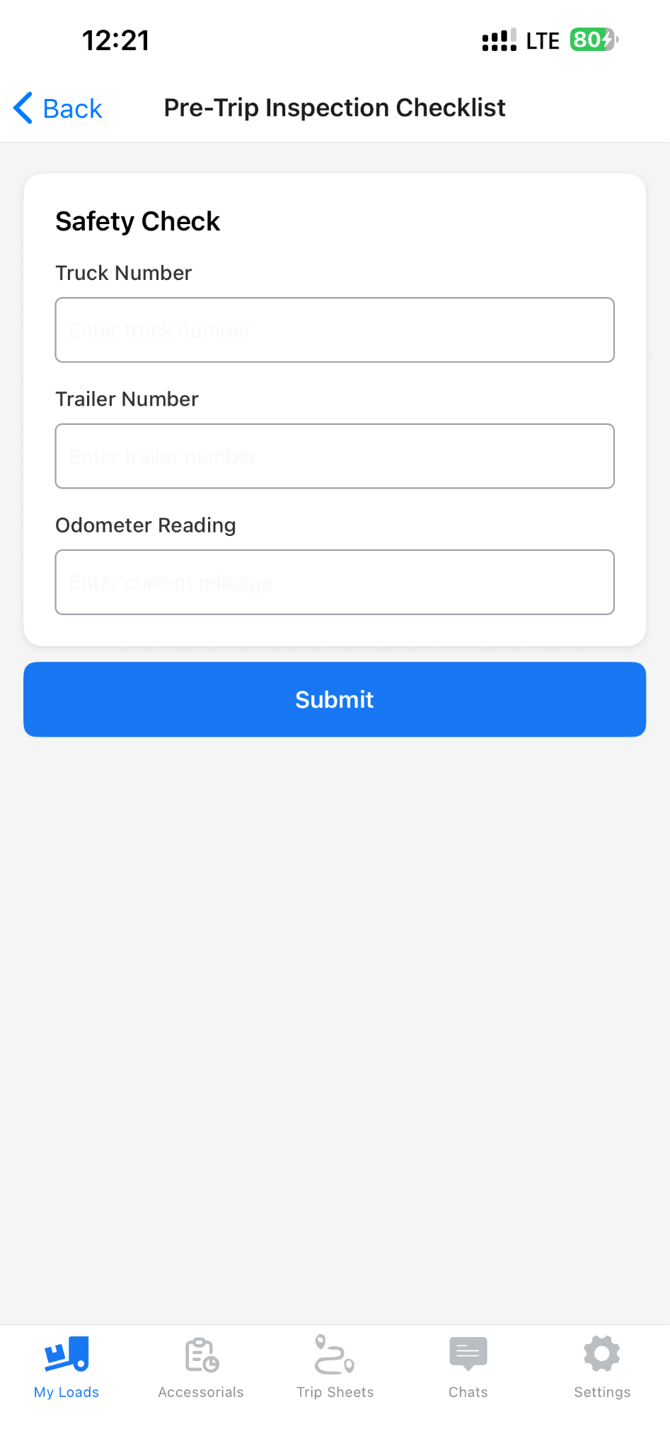
Once submitted, the form is saved in Truckpedia and is available to the office for review.
Summary
Digital Form Templates give you a customizable way to capture inspections, reports, and checklists without paper.
You choose the structure, section names, and question types.