
Option 1: Via the Load Detail View
This method is best when you are already managing a specific load and want to finalize the driver's assignment details.
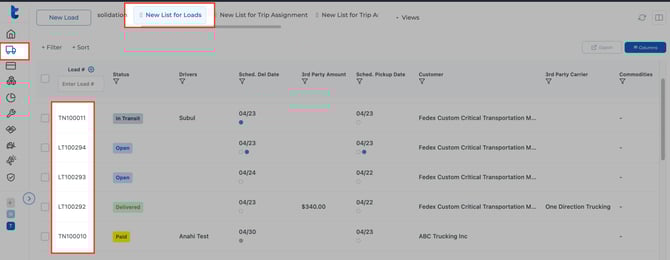
- Navigate to the Dispatching tab and select your preferred view (e.g., "New List for Loads").
-
Open the specific Load you wish to edit.
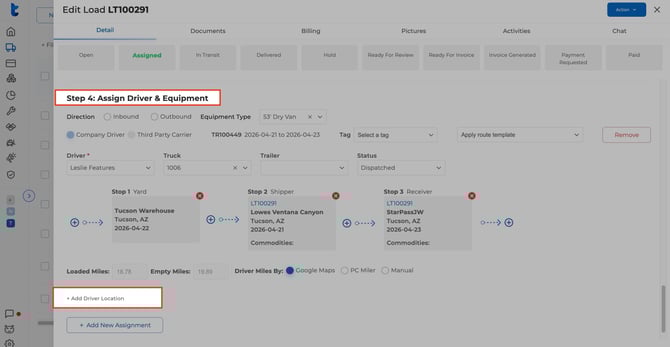
- Scroll down to Step 4: Assign Driver & Equipment.
- At the bottom of the assignment section, click on + Add Driver Location.
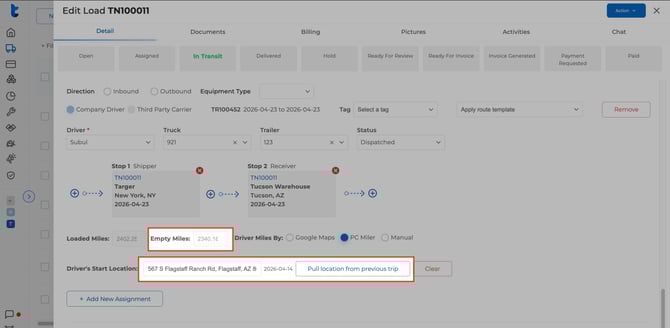
- Calculate Miles:
- Manual Entry: Type the address where the driver started into the Driver's Start Location field. The system will automatically calculate the empty miles based on your selected routing tool (Google Maps or PC Miler).
- Pull from Previous Trip: Click the blue Pull location from previous trip button. Truckpedia will look at the driver's last completed stop in the system and automatically calculate the distance to the current pickup.
Option 2: Via the Trip View
Use this method if you prefer working from a high-level list of all active driver assignments.
- Navigate to the Trip Assignment view (e.g., "New List for Trip Assignment").
- Select the specific Trip Number (e.g., TR100446) to open the management drawer.
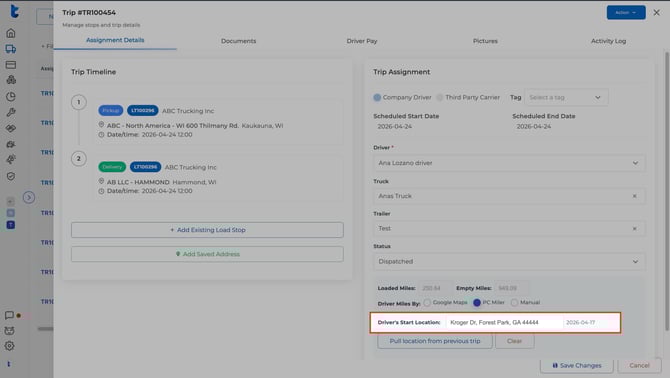
- In the Trip Assignment panel on the right, locate the mileage section at the bottom.
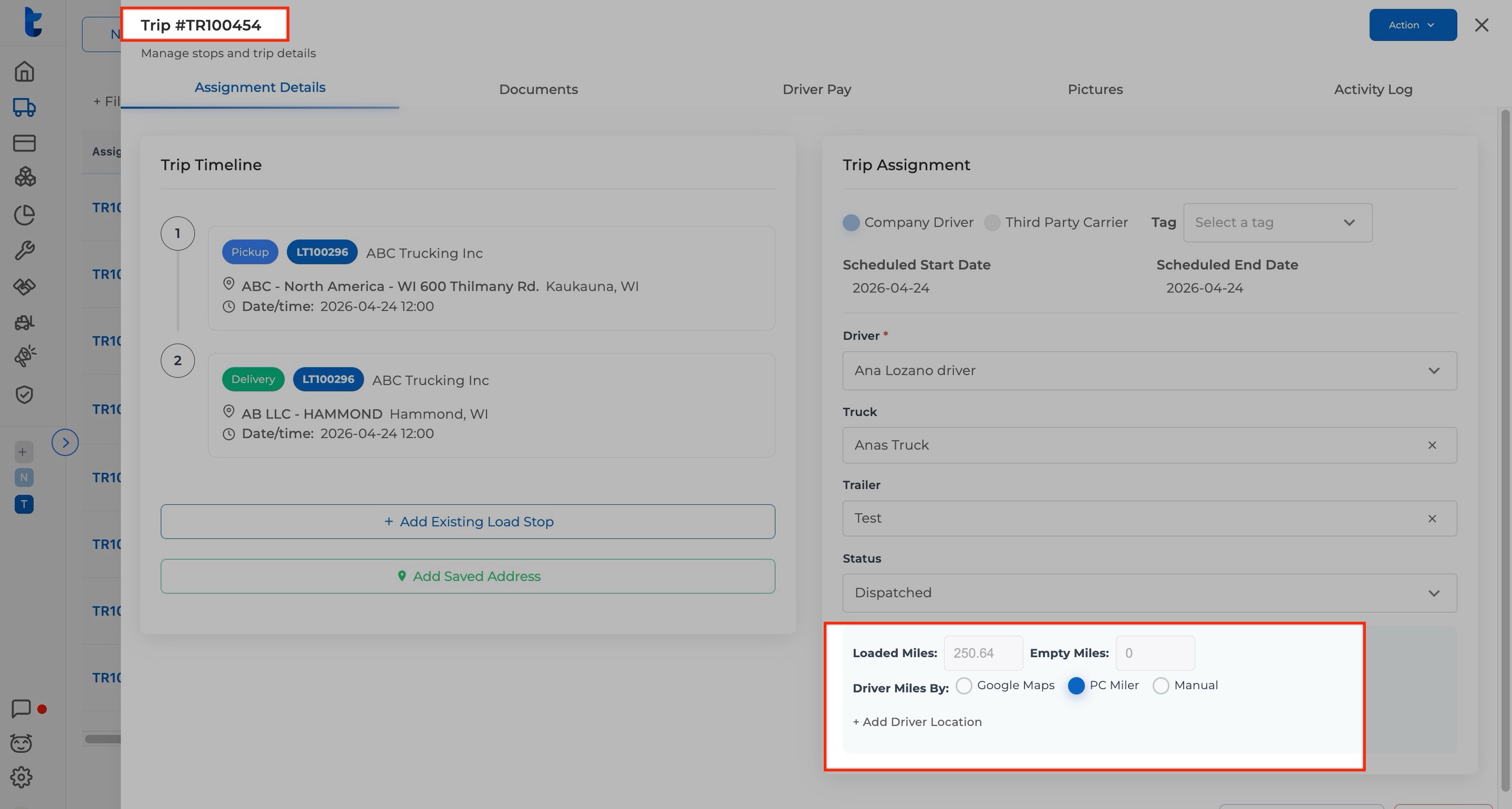
- Calculate Miles:
- Enter the address manually in the Driver's Start Location box.
- OR, click Pull location from previous trip to let the system fetch the coordinates from the driver's prior history.
- The Empty Miles field will update automatically once the location is verified.
Need Help? If the empty miles aren't calculated as expected, ensure the previous trip for that driver has been marked as "Ended" or "Delivered."
Reach out to us for any assistance at help@truckpedia.io