Where Driver Time Off Can Be Created
Driver time off can be added from three places:
1. From the Driver App
Path:
Settings → Time Off Calendar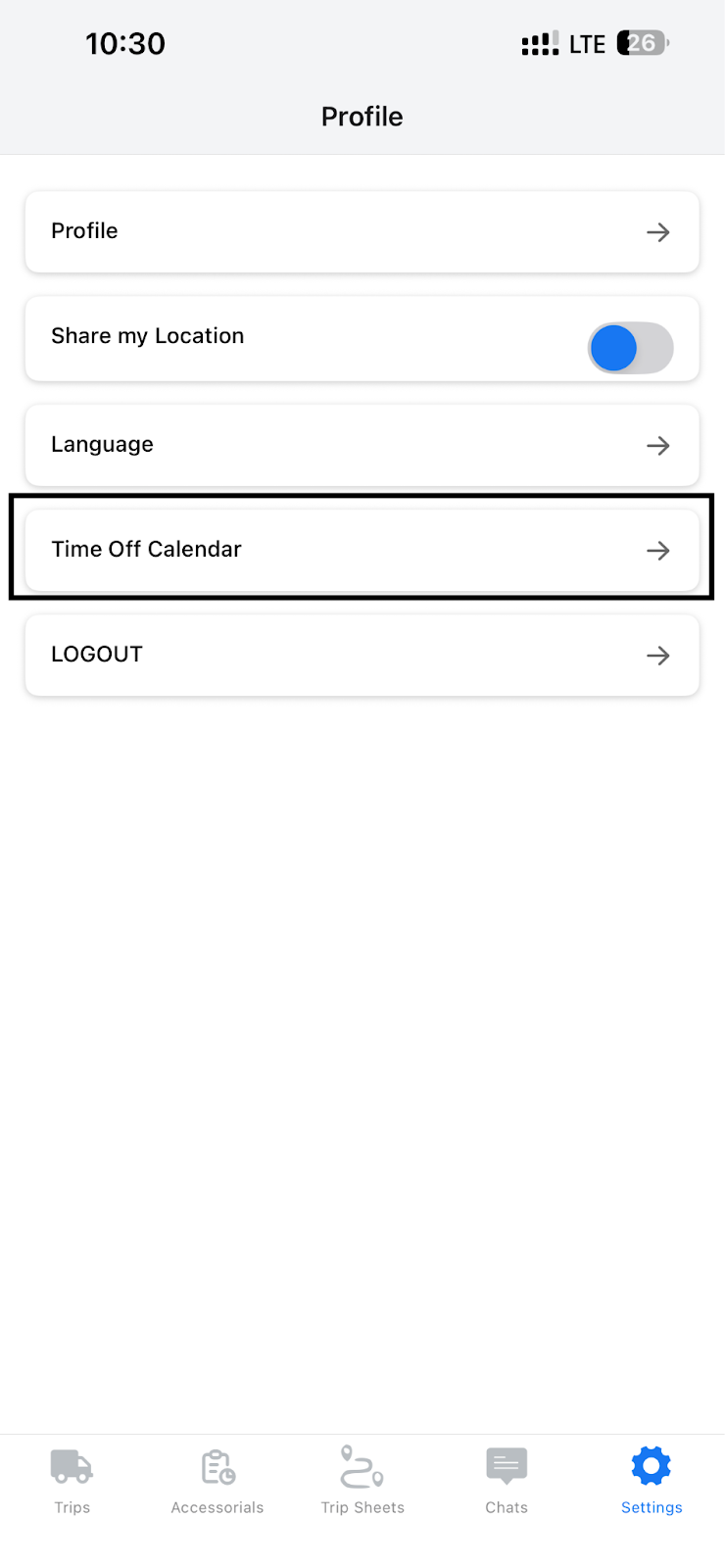
Steps:
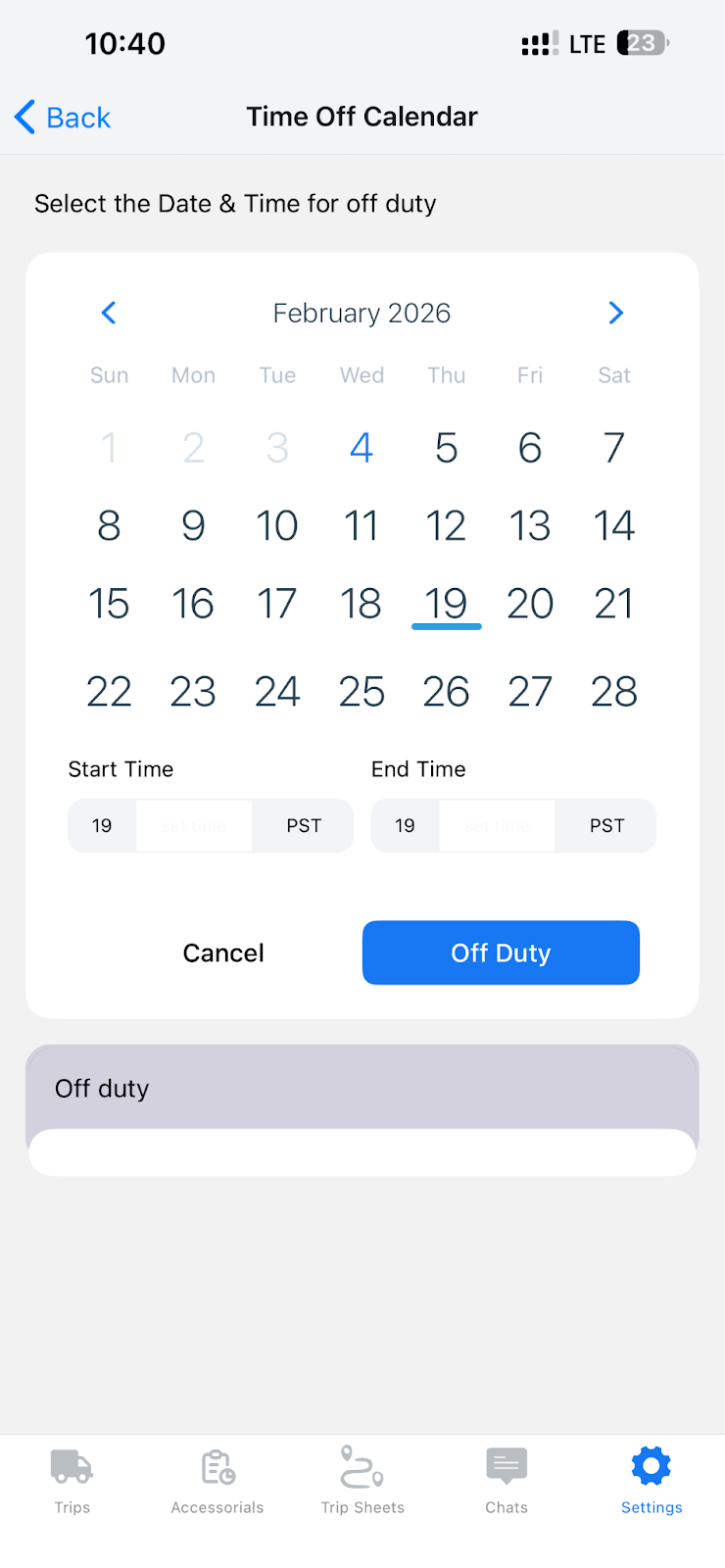
- Open Time Off Calendar
- Select a date
- For 1 day off: click the same date again
- For multiple days: select the start date and end date
- For 1 day off: click the same date again
- Enter From Time and To Time
- Submit
Result:
- The request is created in Requested status inside the driver’s profile
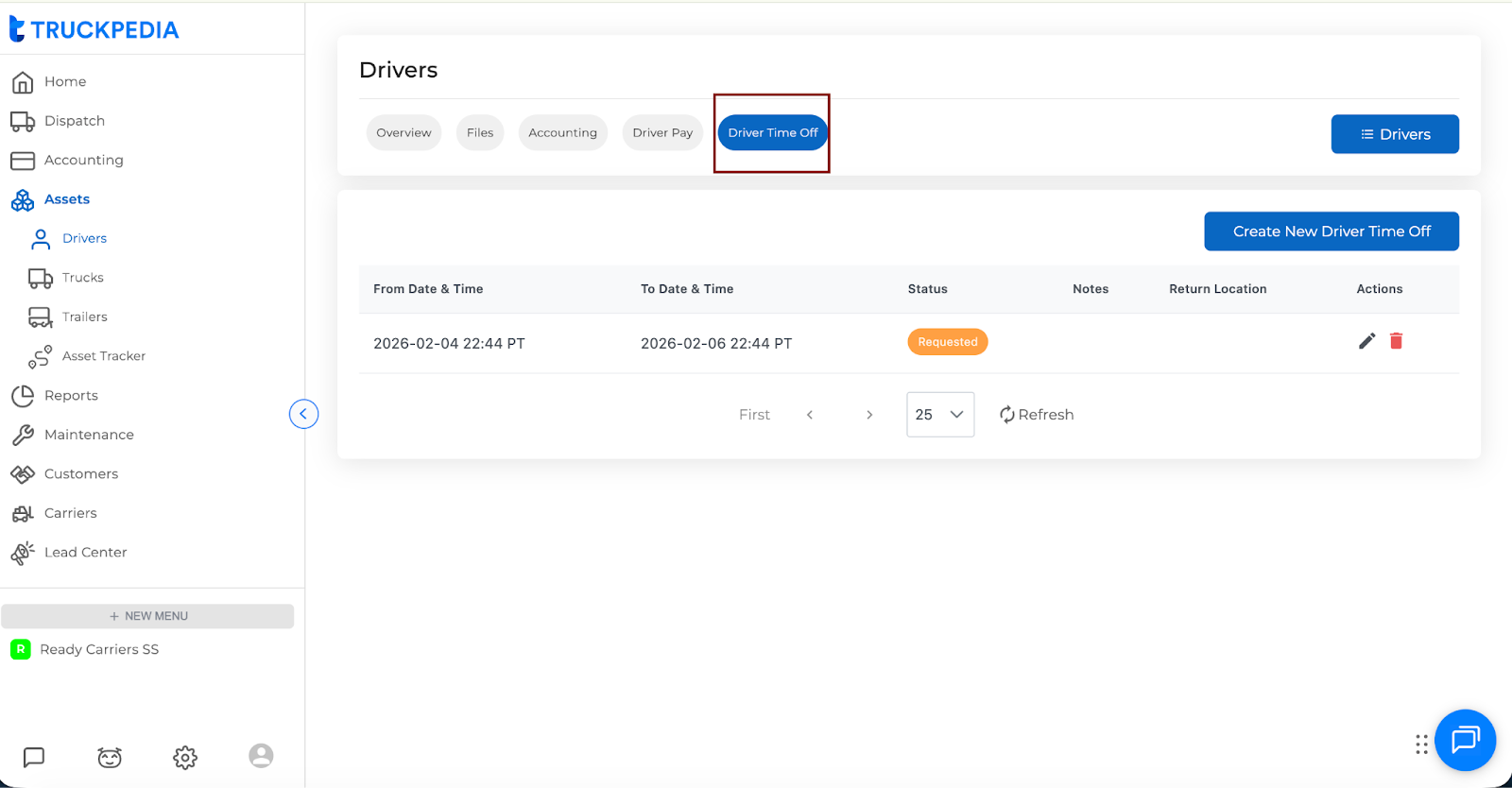
2. From the Driver Profile
Path:
Drivers → Open Driver → Driver Time Off tab
Steps:
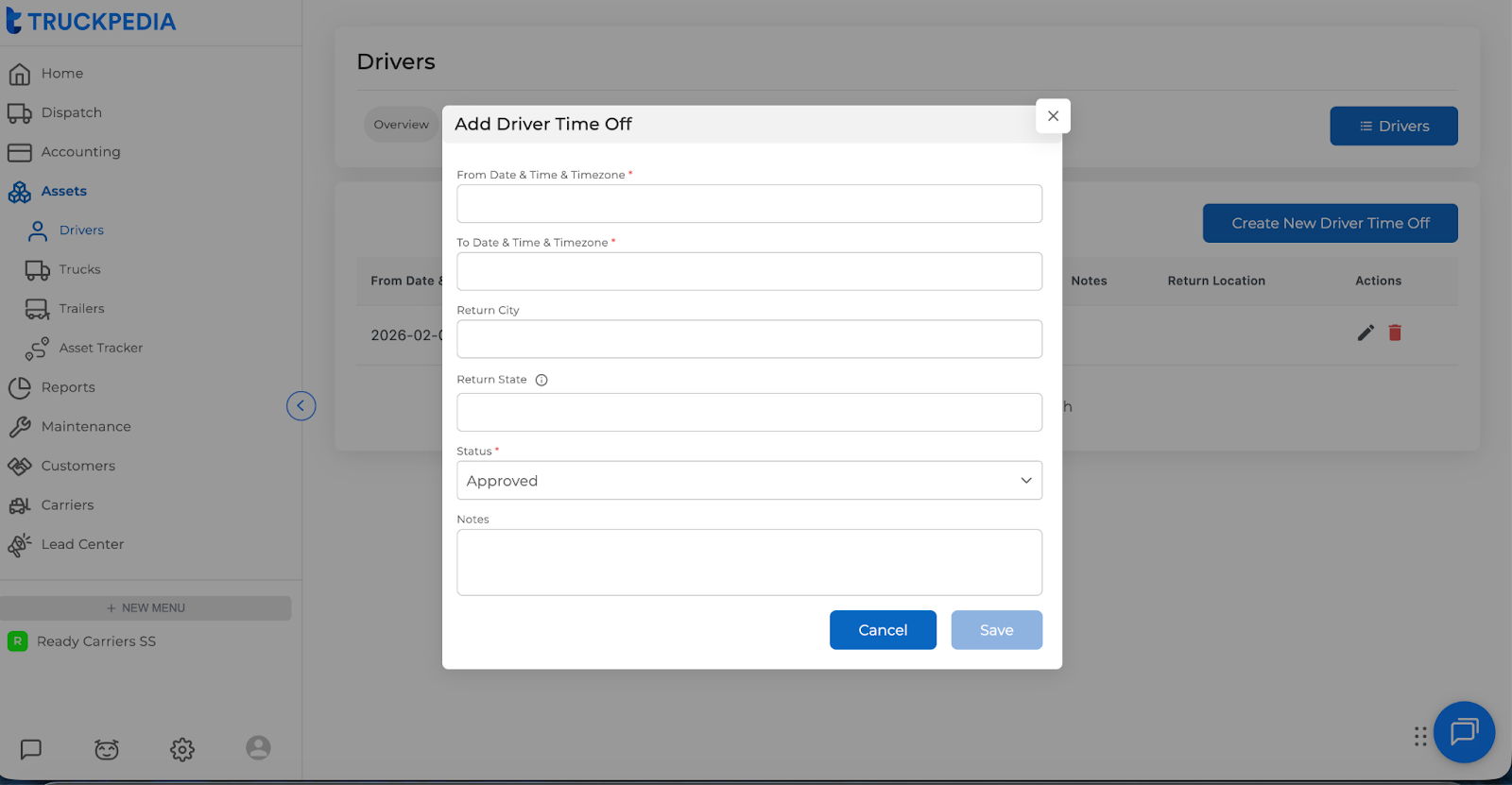
- Click Create New Driver Time Off
- Enter:
- From Date & Time (with timezone)
- To Date & Time (with timezone)
- Optional return city/state
- Notes (optional)
- From Date & Time (with timezone)
- Save
Time Off Statuses and What They Mean
Requested
- Time off exists but is not finalized
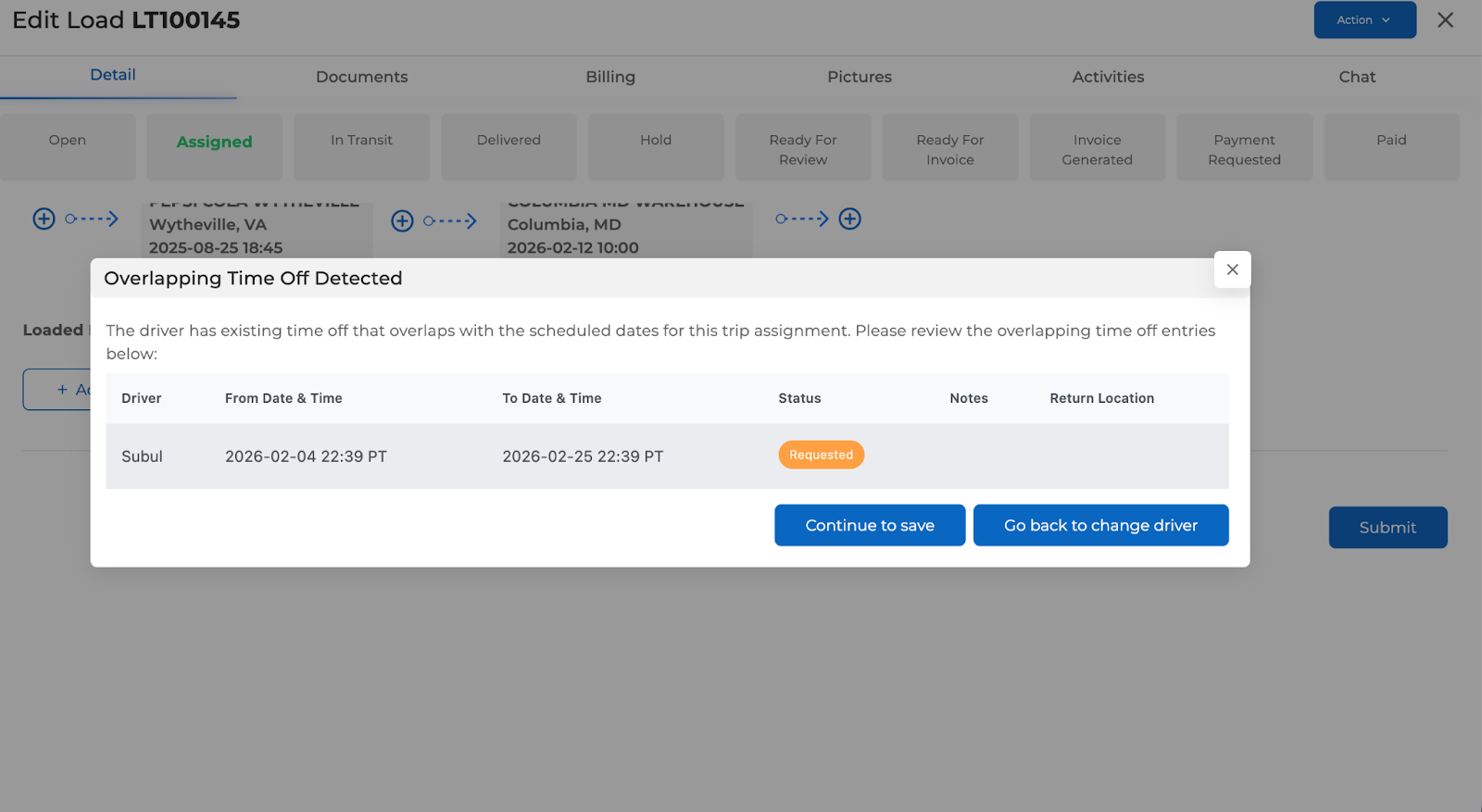
- Driver cannot be assigned to a load without a warning
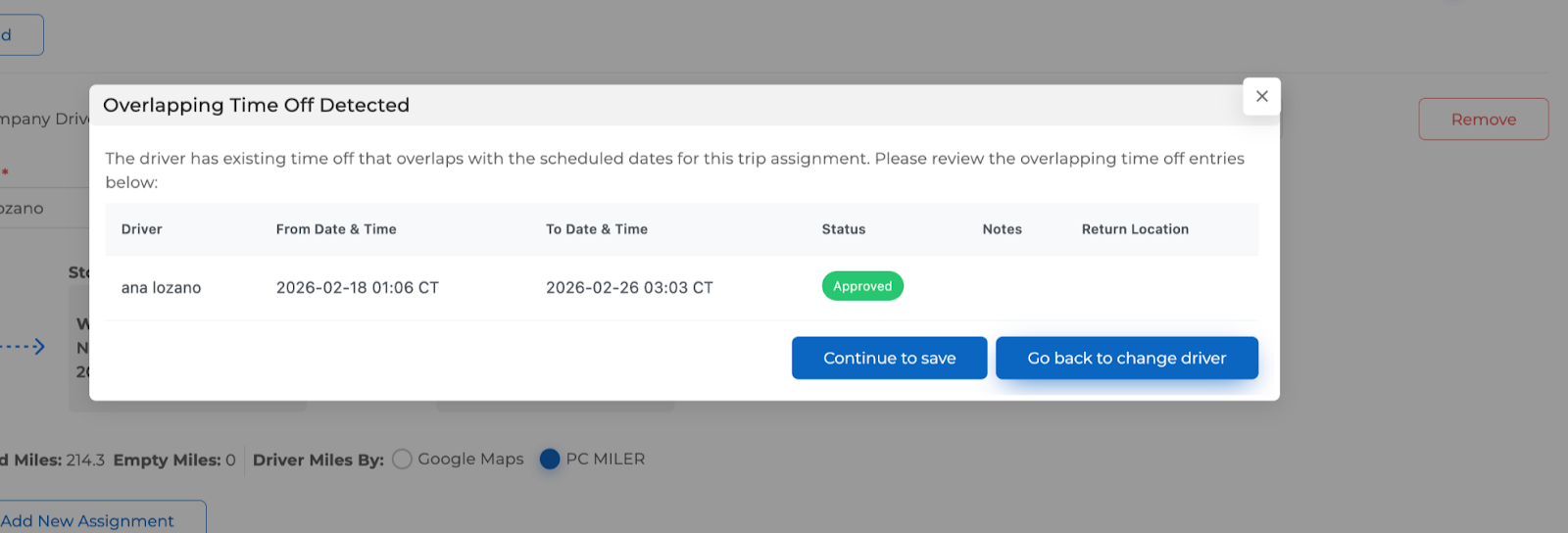
- If you try to assign a load that overlaps:
- A warning modal appears
- You must click Continue to Save to proceed
- A warning modal appears
- This allows flexibility while still alerting the dispatcher
Approved
- Time off is finalized
- Dispatchers can still assign the driver to loads that overlap this period
- The system shows a warning, but does not block assignment
- Dispatchers can proceed after acknowledging the warning
Declined
- Time off is ignored by the system
- Driver can be assigned to loads normally
- No warnings or blocking will occur
This is useful if a request was reviewed and intentionally rejected.
Overlapping Time Off During Load Assignment
When assigning a driver to a load:
- If the driver has Requested or Approved time off overlapping the trip dates:
- A modal appears showing:
- Driver name
- Time off date range
- Status
- Driver name
- A modal appears showing:
- You are given two options:
- Continue to Save (only available for Requested time off)
- Go back and change driver
- Continue to Save (only available for Requested time off)