
Truckpedia Driver App (Trip 3)
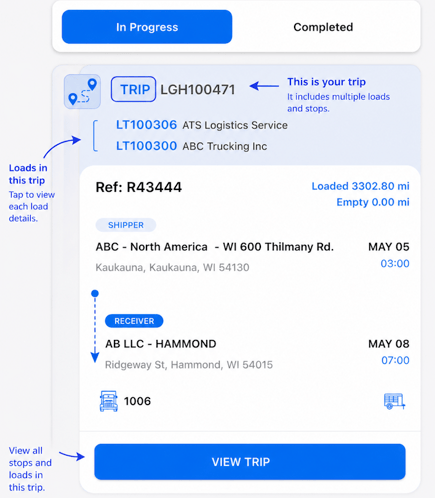
In this version of the app, you’re not just working on one load at a time.
You’re assigned a trip (your full route).
A trip can include:
- Multiple stops
- Multiple loads
- Yard stops (not pickup or delivery)
Viewing Your Trip
When you open the app, you’ll see your assigned trip.
- Stops are listed in order
- Each stop tells you what to do next
Starting Your Trip
When you're ready to begin:
Tap Start on your trip
This begins your route
You must start the trip before taking any actions.
Buttons like Arrived and Loaded will not be available until the trip is started.
From here, work through each stop in order.
Walking Through Stops
Each stop type will guide what action you need to take next.
Pickup
Tap Arrived, then Loaded
Upload BOL or photos if needed
Delivery
Tap Arrived, then Unloaded
Upload POD or photos if needed
Yard (Transfer Stop)
Used to move or swap trailers (not pickup or delivery)
Tap Transfer Commodity and follow the prompt
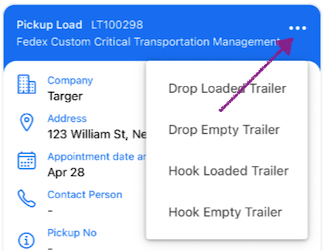
Trailer Actions (Drop & Hook)
Tap the ••• menu to switch trailers:
- Drop Loaded – leave a loaded trailer
- Drop Empty – leave an empty trailer
- Hook Loaded – pick up a loaded trailer
- Hook Empty – pick up an empty trailer
Use this when swapping trailers or at yard/relay stops.
Uploading Documents
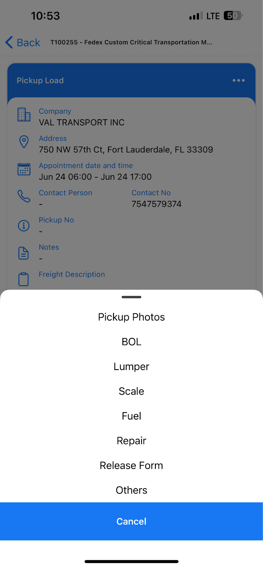
Documents are tied to each stop.
Depending on the stop, you can upload:
- BOL
- POD
- Photos
- Other documents
If you don’t see an upload option:
- You’re likely at a stop where it’s not required
If Your Trip Changes
Dispatch can update your trip while you’re on the road.
This can include:
- Adding a new stop
- Changing the order
- Updating details
If something looks different than before:
- That’s expected — the app updates in real time
If You Only See “Start” and “End”
Some trips may only require you to start and complete the trip.
If you’re unsure what to do, check with your dispatcher.
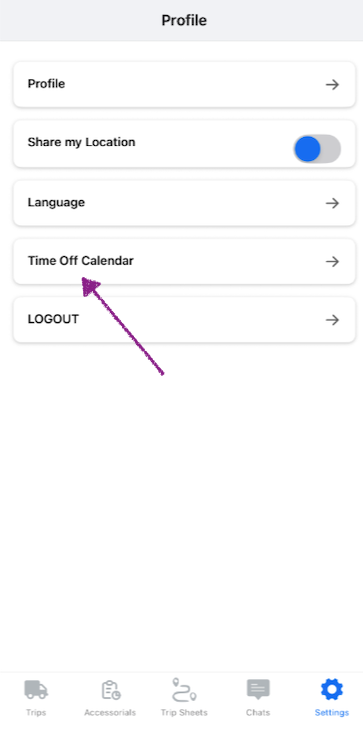
Requesting Time Off
Go to Settings → Time Off Calendar
Select your dates and submit.
Your request will be sent to your admin for approval.
Important Notes
- Always complete stops in order
- Always upload documents at the correct stop
- Pay attention to stop type (pickup, delivery, yard)
- If something looks off, check with dispatch before moving forward