
🎥Video tutorial🎥
Where to Go:
You can create and manage rate sheets from two places:
- Accounting > Customer Rate Sheets — use this when you want to build a rate sheet and apply it to multiple customers at once.
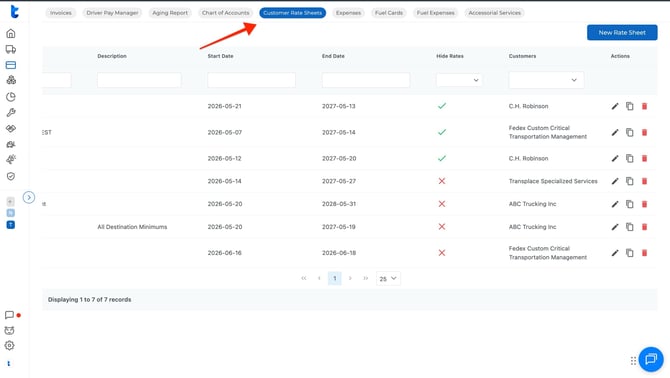
- Customers > Edit > Rate Sheets — use this when you're setting up a rate sheet for one specific customer.
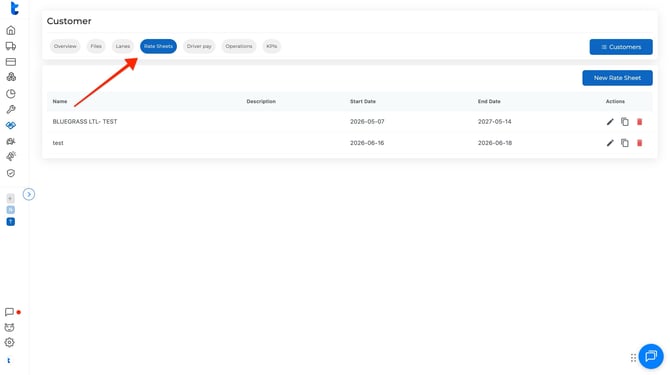
Both paths take you to the same builder. The only difference is how you assign customers.
Step 1: Create a New Rate Sheet
- Go to Accounting > Customer Rate Sheets (or through the customer's edit page).
- Click Create New Rate Sheet.
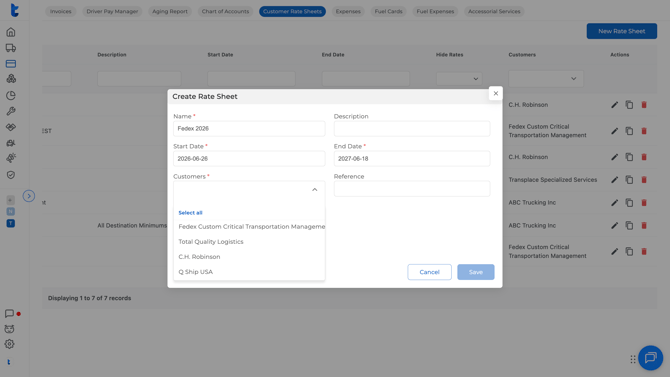
- Fill in:
- Name — something you'll recognize later (e.g., FedEx 2026).
- Description — optional, for internal reference.
- Start Date / End Date — useful if you have contracts tied to a specific period (monthly, yearly, etc.).
- Select which customers this applies to — one specific customer, several, or all.
- Click Save.
You now have an empty rate sheet. Next, add the items that tell the system how to calculate charges.
Step 2: Add Items (Charge Rules)
- From your rate sheet, click Options > Add New Item.
- Select the Account Item — this is the type of charge you want to automate, for example:
- Hauling Fee
- Detention
- Fuel Surcharge
- Lumper / Accessorial
- Add a Description if you want (optional, for internal reference).
- Choose a Mode — this controls how the charge is calculated:
| Mode | How it works |
|---|---|
| Flat Fee | Always charges a fixed amount |
| Variable | Calculates based on miles, weight, quantity, stops, etc. |
| Percentage | Charges a % of another value |
| Fuel Surcharge | Pulls from your fuel surcharge table |
Variable Mode — Setting a Rate
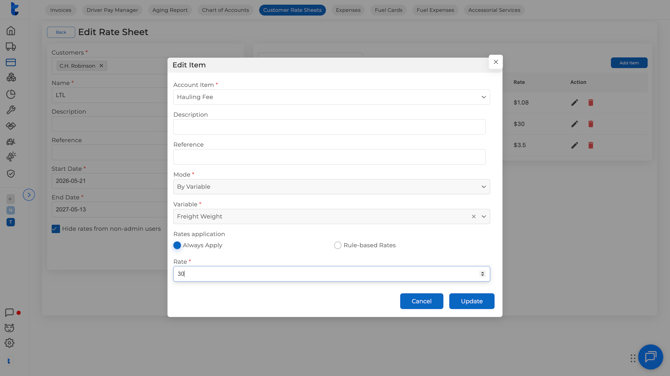
When you select Variable, you'll choose what the rate is based on (e.g., loaded miles, freight weight, quantity, stops) and then how to apply it:
Always Apply — one flat rate regardless of the load:
- Enter your rate per unit (e.g., $0.45 per loaded mile).
- Click Save.
Rule-Based Rates — rate changes depending on conditions:
- Select the field to base the rules on (e.g., miles, stops, load label).
- Set your tiers: if miles < X, use Rate A; if miles between X and Y, use Rate B, and so on.
- Add as many tiers as you need.
- Click Save.
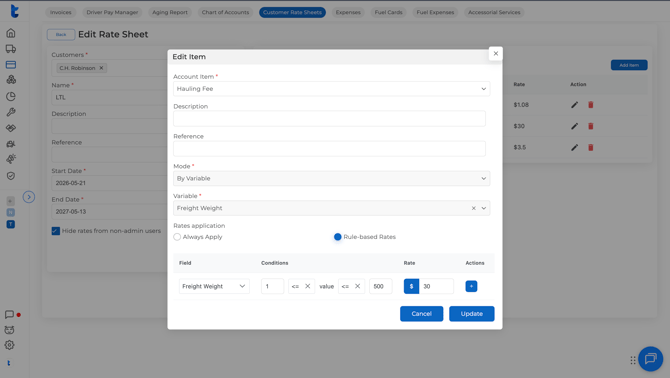
Example
Setting Up Detention
- Click Options > Add New Item, select your detention account item (e.g., Shipper Detention).
- Set Mode to Variable, then select Shipper Detention as the variable.
- Enter the free time in minutes before detention starts — for example, 120 if you give drivers 2 free hours.
- Enter the rate to charge after free time runs out.
- Click Save.
The system will calculate detention automatically using timestamps from the driver app. Dispatchers can adjust these if needed.
Step 3: Apply the Rate Sheet When Creating a Load
Once your rate sheet is set up, using it on a load takes seconds:
- Go to Dispatch > Create Load.
- Select your customer in Steps 1–2.
- In Step 3, open the Customer Rate Sheet Templates dropdown and select your template.
- The system will automatically fill in the charges based on your rules — hauling fee, fuel surcharge, taxes, etc.
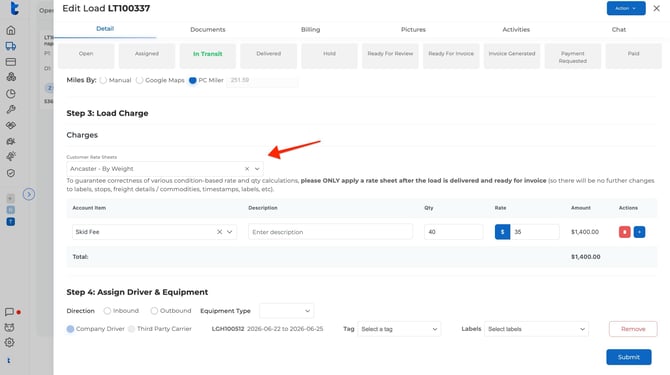
You can still manually add or edit charges on any load if something comes up that isn't covered by your rules. Just add a new line, select the charge type, and fill in the details.
What's Next?
- Need help setting up your items first? → [How to Add Items to Your Chart of Accounts — link here]